CareLink User Guide
- Introduction
- Quick Start
- Common Commands Our Users Love
- Features
- FAQ and other important information
- Known Issues
- Complete Command summary
Introduction
CareLink is a practical and user-friendly tool crafted specifically for independent geriatricians. This keyboard-based application with a visual interface offers quick and simple ways to access patient information, schedule appointments, and manage caregiver coordination. With CareLink, you can streamline essential tasks, improve patient care, and reduce the time spent on paperwork. Designed to fit naturally into your workflow, CareLink supports you in delivering high-quality care with ease.
What is CareLink?
CareLink simplifies healthcare management through its four core capabilities:
- Enables efficient tracking of patient information
- Seamless caregiver coordination
- Smart appointment scheduling
- Comprehensive medical note management
Key Features
-
Patient Management
- Store and update patient records
- Track medical histories
- Search patient information
- Manage patient-caregiver relationships
-
Appointment System
- Schedule and track appointments
- Manage scheduling conflicts
- Set appointment reminders
- Monitor appointment status
-
Caregiver Coordination
- Link patients with caregivers
- Maintain caregiver contact information
- Track caregiver assignments
- Enable efficient communication
-
Data Organization
- Secure data storage
- Quick information retrieval
- Automated backups
- Advanced search capabilities
Who is CareLink For?
CareLink is designed specifically for independent geriatricians who:
- Manage multiple elderly patients with chronic conditions
- Need to coordinate with caregivers
- Require efficient appointment scheduling
- Want to track patient histories and medical notes
How This Guide Helps You
This user guide will walk you through:
- Setting up CareLink
- Managing patients and caregivers
- Scheduling appointments
- Recording medical notes
- Using advanced features
For immediate setup, you can proceed to Quick Start. For detailed feature information, you can visit the Features section.
Quick Start
- Ensure you have Java
17or above installed on your computer. For optimal display, use a 13-inch screen or larger with a resolution of 1280x720 pixels or higher. Avoid resizing the window below this resolution, as it may hide essential interface elements.
- Check for Java version:
- Open your computer’s terminal:
- For Windows: Press the Windows key + R, type cmd, and press Enter
- For Mac: Press Command + Space, type terminal, and press Enter
- In the window that appears, type the following:
java --version - Press Enter
- If you see “Java version 17”, you are all set!
- If you see any other error/ java version, visit Java’s download page to install Java 17
- Open your computer’s terminal:
-
Download the latest CareLink
.jarfile from here. - Copy the file to your desired CareLink home folder.
- Open a command terminal, navigate to your home folder, and then run the following command:
java -jar carelink.jar
When you run this command, the CareLink application window opens with sample data:
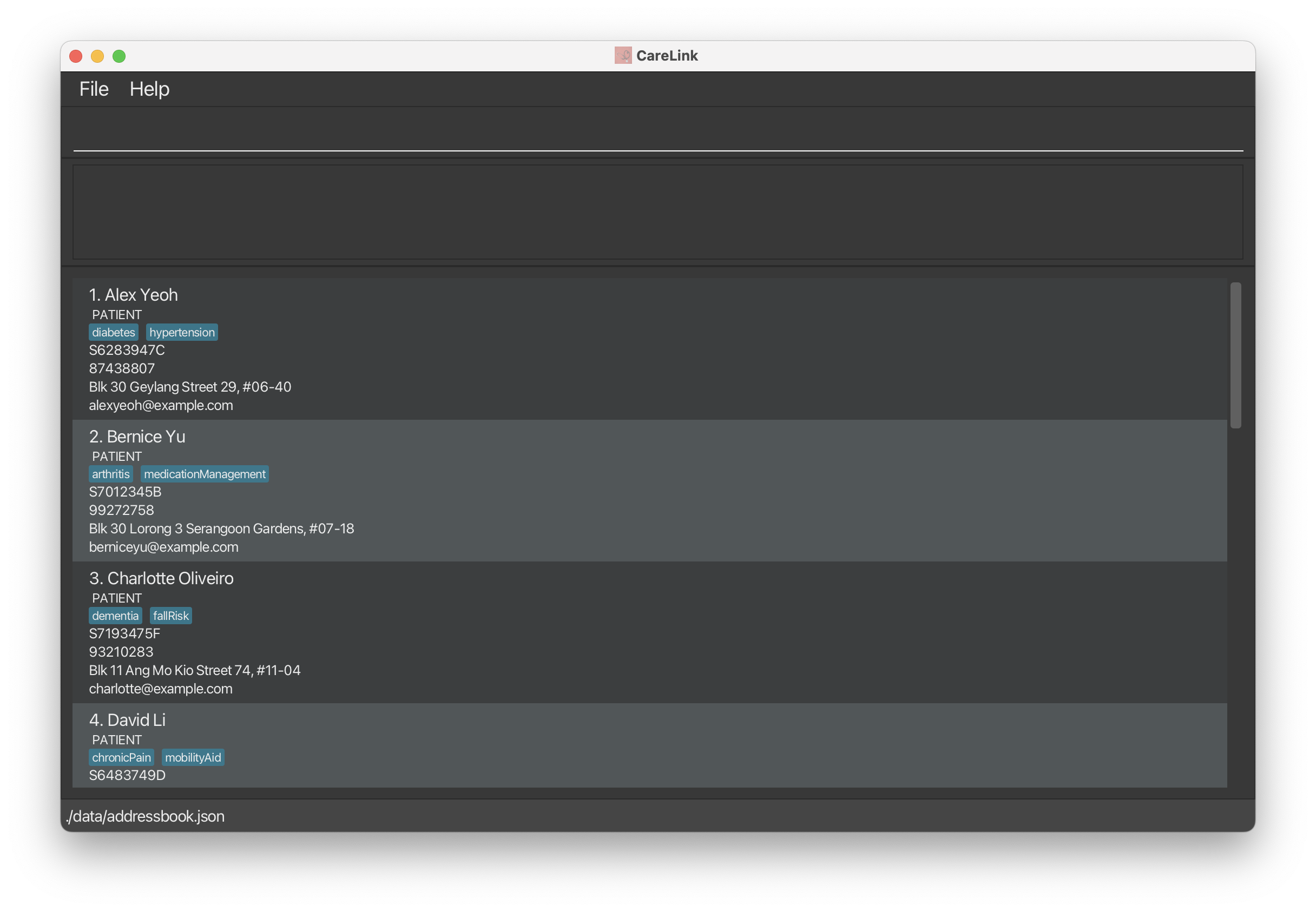 Figure 1: CareLink main window with sample data
- Type your commands in the command box and press
Enterto execute them. You can try these basic commands:
- Displays all persons in CareLink:
list -
Adds a new person:
add n/John Lee nric/S9369777D p/91234567 e/johnlee@email.com a/123 Medical Drive role/patient -
Views help:
help - Exits CareLink:
exit
For detailed instructions on all commands, you can proceed to the Features section.
Tip: Type
helpat any time to view the command guide.
Common Commands Our Users Love
-
Add a New Person: Quickly adds a patient or caregiver to the system.
-
Schedule an Appointment: Sets up an appointment with ease.
-
Link Patient to Caregiver: Connects a patient with a caregiver for streamlined management.
-
Find a Person: Quickly locates a person.
-
Delete a Person: Removes a person from the system.
-
Update Appointment Status: Marks an appointment as completed or pending.
Features
 Notes about using commands are in the following format:
Command Input Guide
-
Using Parameters
- Words in
UPPER_CASEare placeholders for your input.- Example: In
add n/NAME, replaceNAMEwith the person’s name, likeadd n/John Doe.
- Example: In
- Words in
-
Optional and Repeating Items
-
Square Brackets
[ ]mean the item is optional.- Example:
n/NAME [t/TAG]can be used asn/John Doe t/friendor simplyn/John Doe.
- Example:
-
Ellipses
...indicate that items can repeat.- Example:
[t/TAG]...allows for multiple tags:t/friend t/family t/elderly.
- Example:
-
Square Brackets
-
Flexible Order
- Parameters can be entered in any order.
- Example:
n/NAME p/PHONE_NUMBERis the same asp/PHONE_NUMBER n/NAME.
- Example:
- Parameters can be entered in any order.
-
Ignoring Extra Parameters
- For commands that don’t need additional information, extra input is ignored.
- Example:
help 123is the same ashelp.
- Example:
- For commands that don’t need additional information, extra input is ignored.
-
Copying Commands from PDF
- If copying commands from a PDF, check for any missing spaces, as line breaks may remove spaces when pasted.
Viewing help : help
Shows a message explaining how to access the help page.
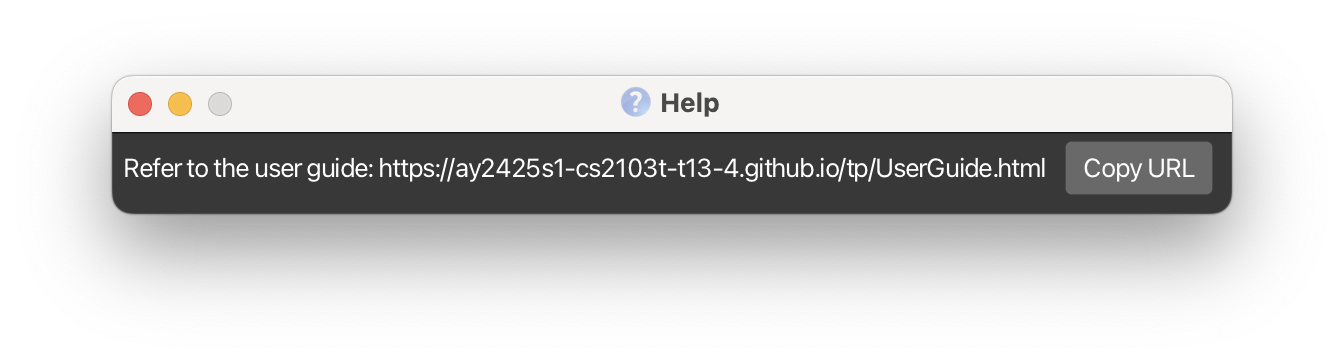 Figure 2: Example of using the
 help
Use this command format: help
Managing Patients and Caregivers
Adding a Person: add
Use this command to add a person to the address book.
Format:
add n/NAME nric/NRIC p/PHONE_NUMBER e/EMAIL a/ADDRESS role/ROLE [t/TAG]…
Field Constraints:
-
NAME: Starts with an alphanumeric character, followed by alphanumeric characters and spaces. -
PHONE: Numbers only, with at least 3 digits. -
EMAIL: Must follow the formatlocal-part@domainwhere:-
Local-part: Can contain alphanumeric characters and these special characters:
+ _ . -- Cannot start or end with special characters.
-
Domain:
- Ends with a domain label at least 2 characters long.
- Contains labels that start and end with alphanumeric characters, separated only by hyphens.
-
Local-part: Can contain alphanumeric characters and these special characters:
-
ADDRESS: Cannot start with a whitespace and must not be blank. -
ROLE: Must be eitherPATIENTorCAREGIVER. -
NRIC: Refer to the NRIC constraints section for specific requirements.
Note: Each person must have the role of PATIENT, CAREGIVER, or both.
 Tip:
You can have multiple people to share the same email address, making it easier for caregivers to manage emails on behalf of several patients
Tip:
A person can have any number of tags (including 0)
Tip:
You can have multiple people to share the same email address, making it easier for caregivers to manage emails on behalf of several patients
Tip:
A person can have any number of tags (including 0)
 Important: Currently, the
 NAME field does not support hyphens. Only letters, numbers, and spaces are allowed. We recommend entering names without hyphens to avoid errors or replacing them with an acceptable alternative such as a space should you wish to do so Important: Currently, tags are case-insensitive. We recommend adopting a consistent practice for naming tags to avoid duplication of tags in future. For example, you could choose to make all tags lowercase.Examples:
add n/John Doe nric/S6483749D p/98765432 e/johnd@example.com a/311, Clementi Ave 2, #02-25 t/backPain t/diabetic role/patient
Here’s how to add a patient to the address book:
 Figure 3: Example of using the
 add command to add a patient to CareLink
When the command succeeds, you’ll see the following message confirming that the person has been added to the address book
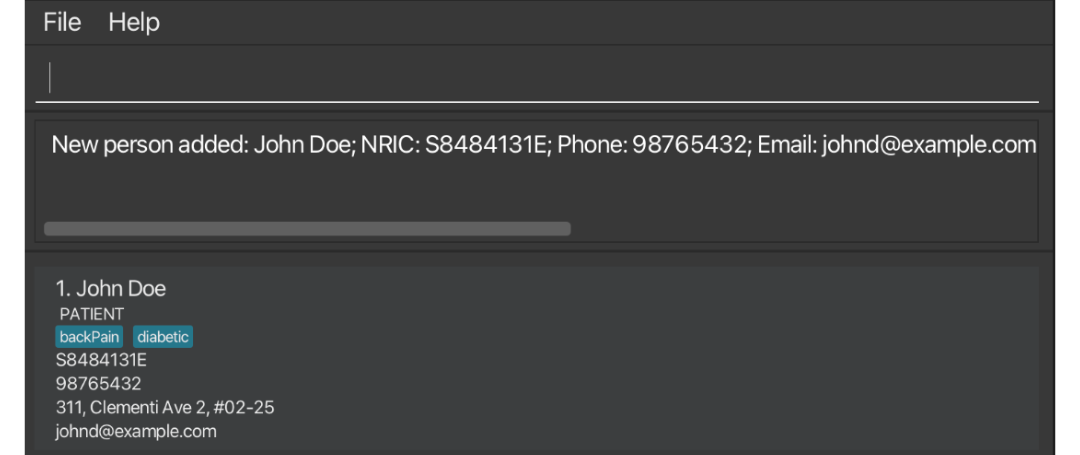 Figure 4: Success message displayed after adding a patient
Possible Errors:
-
This person already exists in the address book- Displayed when trying to add a person with an NRIC that already exists. -
Roles should only be 'PATIENT' or 'CAREGIVER'- Displayed when an invalid role is provided. -
Missing required field:- Displayed when any required field is not provided (name, NRIC, phone, email, address, or role).
Linking a patient to a caregiver: link
Use this command to link a patient to a caregiver.
Use this command format: link patient/PATIENT_NRIC caregiver/CAREGIVER_NRIC
Examples:
link patient/S6283947C caregiver/S6382947A
The example below demonstrates how to use CareLink to link a patient and a caregiver:
If you have cleared your data before testing out this feature, add the following commands to first add the two people to link:
add n/Alex Y nric/S6283947C p/88888888 e/Alex@example.com a/311, Clementi Ave 2, #02-25 t/backPain t/diabetic role/patientadd n/Bernice nric/S6382947A p/98765432 e/bernice@example.com a/311, Clementi Ave 2, #02-25 t/backPain t/diabetic role/caregiver
 Figure 5: Example of using the
 link command to link a patient to a caregiver
When the command succeeds, the patient will be linked to the caregiver and the following message will be displayed:
 Figure 6: Success message displayed after linking a patient with a caregiver
link caregiver/S6382947A patient/S7193475F
Possible Errors:
-
This link already exists in CareLink- Displayed when you are attempting to create a link that already exists. -
Cannot link same people- Displayed when you are trying to link a person to themselves. -
Incorrect NRIC. Caregiver and Patient not found- Displayed when both NRICs cannot be found in CareLink. -
Incorrect NRIC. Patient not found- Displayed when the patient’s NRIC cannot be found. -
Incorrect NRIC. Caregiver not found- Displayed when the caregiver’s NRIC cannot be found. -
Incorrect roles. The patient NRIC must correspond to a patient, and the caregiver NRIC must correspond to a caregiver.- Displayed when the roles don’t match the specified NRICs.
Deleting a link between patient and a caregiver: deletelink
Use this command to remove a link between a patient and caregiver in CareLink.
Use this command format: deletelink patient/PATIENT_NRIC caregiver/CAREGIVER_NRIC
Examples:
deletelink patient/S6283947C caregiver/S6382947A
The example below demonstrates how to delete a link between a patient and a caregiver:
 Figure 7: Example of using the
 deletelink command to remove a link between a patient and a caregiver
When the command succeeds, you see a message confirming the link was removed:
 Figure 8: Success message displayed after deleting a link between a patient and a caregiver
deletelink caregiver/S6382947A patient/S7193475F
Adding Notes to a Person: addnote
Use this command to add notes to an existing person.
Use this command format: addnote nric/NRIC note/NOTES
Examples:
addnote nric/S6283947C note/stopped taking XYZ medication on ABC day
The example below shows how to add notes to a person using CareLink:
 Figure 9: Example of using the
 addnote command to add a note to a patient’s record
When the command succeeds, the notes will be added to the person and the following message will be displayed:
 Figure 10: Success message displayed after adding a note to a patient’s record
addnote nric/S7012345B note/is caregiver for patient XYZ only until ABC day
Warning: CareLink does not check for duplicate notes. Please verify existing notes before adding new ones to avoid redundant medical information.
Tip:
To view all notes for a person, use the find command with their NRIC or name. Notes are shown only in the search results to keep the main display clean and focused.
Possible Errors:
-
Person not found- When the person’s NRIC entered cannot be found in the system
Listing all persons : list
Use this command to display a list of all persons in CareLink.
Use this command format: list
Editing a person : edit
Use this command to edit an existing person in CareLink.
Use this command format: edit NRIC [n/NAME] [p/PHONE] [e/EMAIL] [a/ADDRESS] [t/TAG]…
- Edits the person with the specified
NRIC. TheNRICmust be a valid Singapore National Identification Card Number. - At least one of the optional fields must be provided.
- Existing values will be updated to the input values.
- When editing tags, the existing tags of the person will be replaced. i.e adding of tags is not cumulative.
- You can remove all the person’s tags by typing
t/without specifying any tags after it.
Examples:
-
edit S1234567D p/91234567 e/johndoe@example.comEdits the phone number and email address of the person withS1234567Dto be91234567andjohndoe@example.comrespectively. -
edit S6483749D n/Betsy Crower t/Edits the person with NRICS6483749Dto beBetsy Crowerand clears all existing tags.
Warning: Existing links that the person has are lost due to the edit command, as crucial data is changed. You can find more about this under Known Issues
Possible Errors:
-
Incorrect NRIC. Person not found- When the specified NRIC doesn’t exist in CareLink -
At least one field to edit must be provided.- When no fields to edit are specified -
This person already exists in the address book.- When editing would result in a duplicate person
Locating persons by name, NRIC, phone, email, role, or tags: find
Use this command to find persons based on specified criteria and prefixes.
Use this command format: find [n/NAME] [nric/NRIC] [p/PHONE] [e/EMAIL] [role/ROLE] [t/TAG]…
Warning: All search parameters (NRIC, phone, email, role) must exactly match the stored data, except for name which allows partial matches. For example:
- NRIC 'S1234567D' will match 'S1234567D' only
- Phone '91234567' will match '91234567' only
- Name 'John' will match 'John Doe', 'Johnny'
- The NRIC must be a valid Singapore NRIC that follows the official format ('S/T' for citizens/PRs, 'F/G' for foreigners, followed by 7 digits and a checksum letter)
- The search is case-insensitive. e.g
n/alexwill matchAlex. - The order of the prefixes and keywords does not matter. e.g
n/Alex nric/S1234567Dis equivalent tonric/S1234567D n/Alex. - You must provide at least one of the keywords.
- Persons matching any of the provided criteria will be returned (i.e.,
ORsearch). For example,n/Alex t/friendwill return persons whose name contains “Alex” or have the tag “friend”.
Prefixes:
-
n/NAME: Searches by name. -
nric/NRIC: Searches by Singapore National ID. -
role/ROLE: Searches by role (e.grole/patientorrole/caregiver). -
t/TAG: Searches by tag (e.gt/friend,t/family). -
p/PHONE: Searches by phone number. -
e/EMAIL: Searches by email address. -
role/ROLE: Searches by role (e.grole/patientorrole/caregiver).
Examples:
-
find n/JohnreturnsJohn,John Doe. -
find n/Alex nric/S1234567Dreturns persons whose name containsAlexor with NRICS1234567D. -
find role/patient t/friendreturns all patients or persons with the tagfriend. -
find role/caregiverreturns all caregivers. -
find p/1234567 e/johndoe@example.comreturns persons with phone number1234567or email addressjohndoe@example.com.
Tip:
To navigate through multiple results more efficiently, try using the Tab key twice, followed by the Up and Down arrow keys to cycle through options. This eliminates the need for scrolling or using the mouse.
The example of using the find command in CareLink appears below:
 Figure 11: Example of using the
 find command to locate a person in CareLink
When the command succeeds, the persons found will be displayed with comprehensive information about each of them.
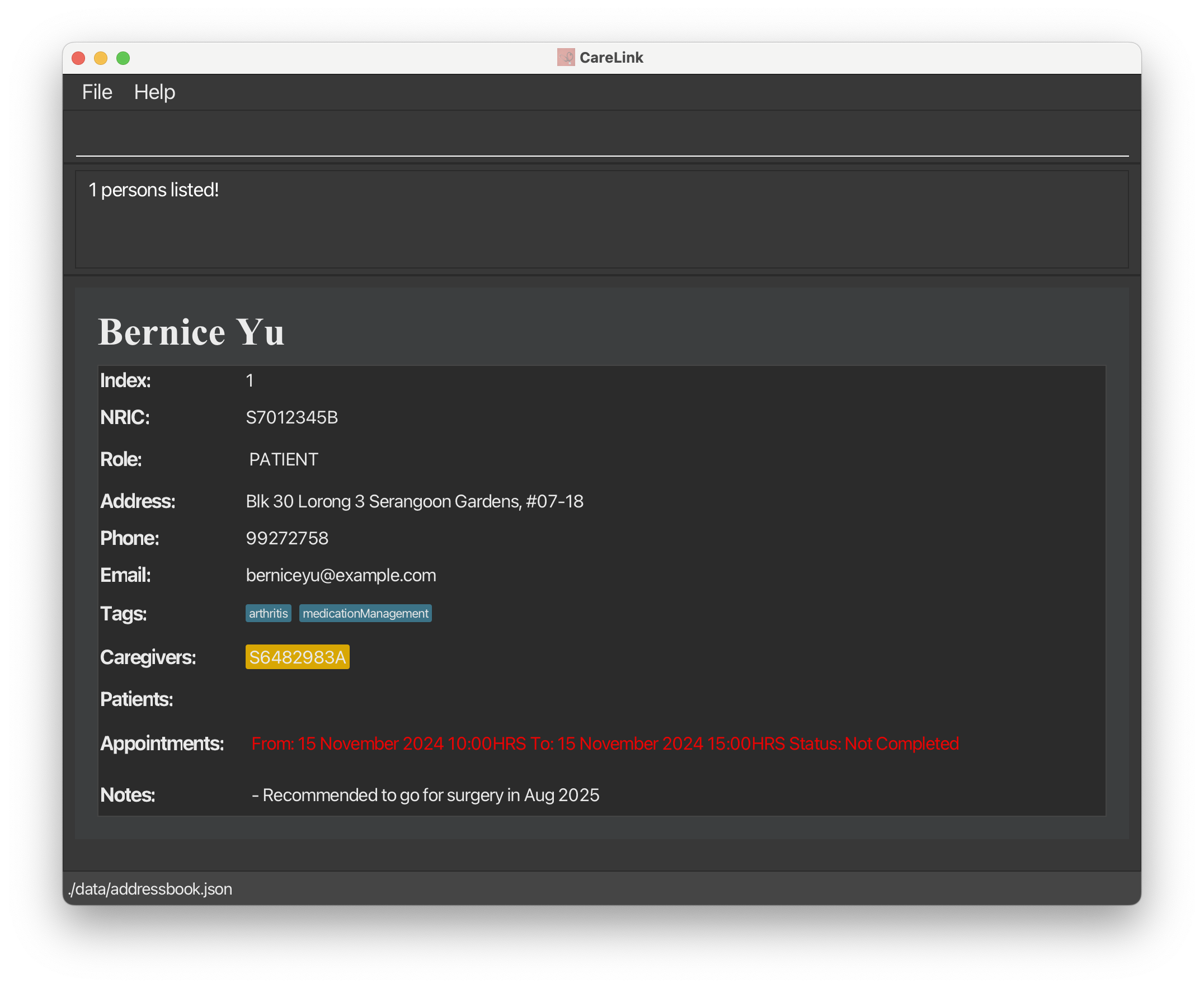 Figure 12: List of persons displayed after using the
 find command with specified criteria
Possible Errors:
-
Invalid command format!find: Finds all persons based on the specified criteria and displays them as a list with index numbers. Search is case-insensitive. Parameters: [n/NAME] [nric/NRIC] [role/ROLE] [t/TAG]… At least one parameter must be provided. You do not need to include all parameters.
Deleting a person : delete
Use this command to find persons based on specified criteria and prefixes.
Use this format: delete NRIC
- Deletes the person with the specified
NRIC. - The NRIC must be a valid Singapore National ID (eg. S1234567D)
Examples:
-
find n/DavidreturnsDavid LIwith NRICS6483749D -
delete S6483749Ddeletes the person with the NRICS6483749Din the address book.
The example of using the delete command in CareLink is shown below.
David LI.
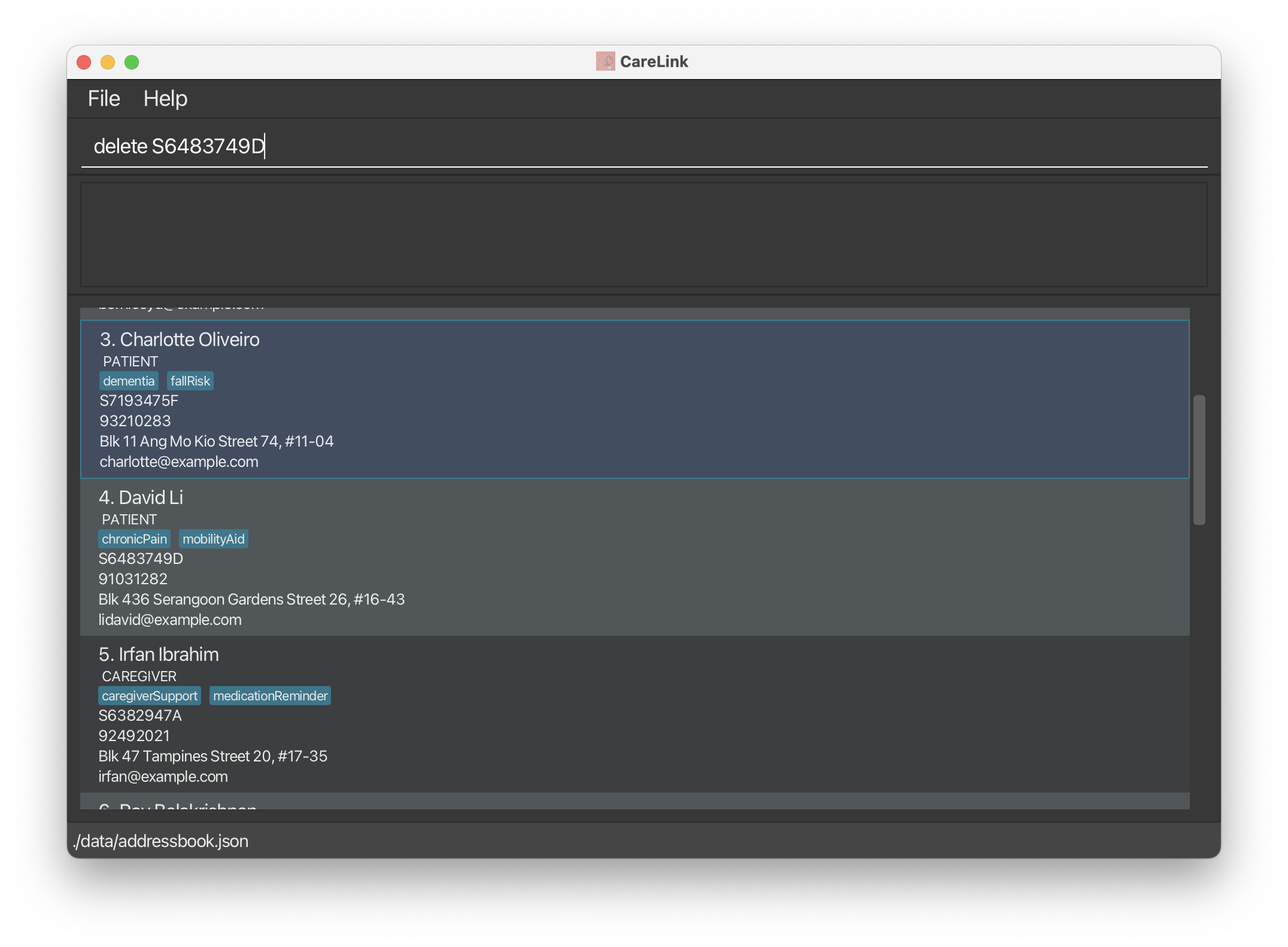 Figure 13: Example of using the
 delete command to remove a person from CareLink
When the command succeeds, you can notice that David is removed and hence no longer displayed.
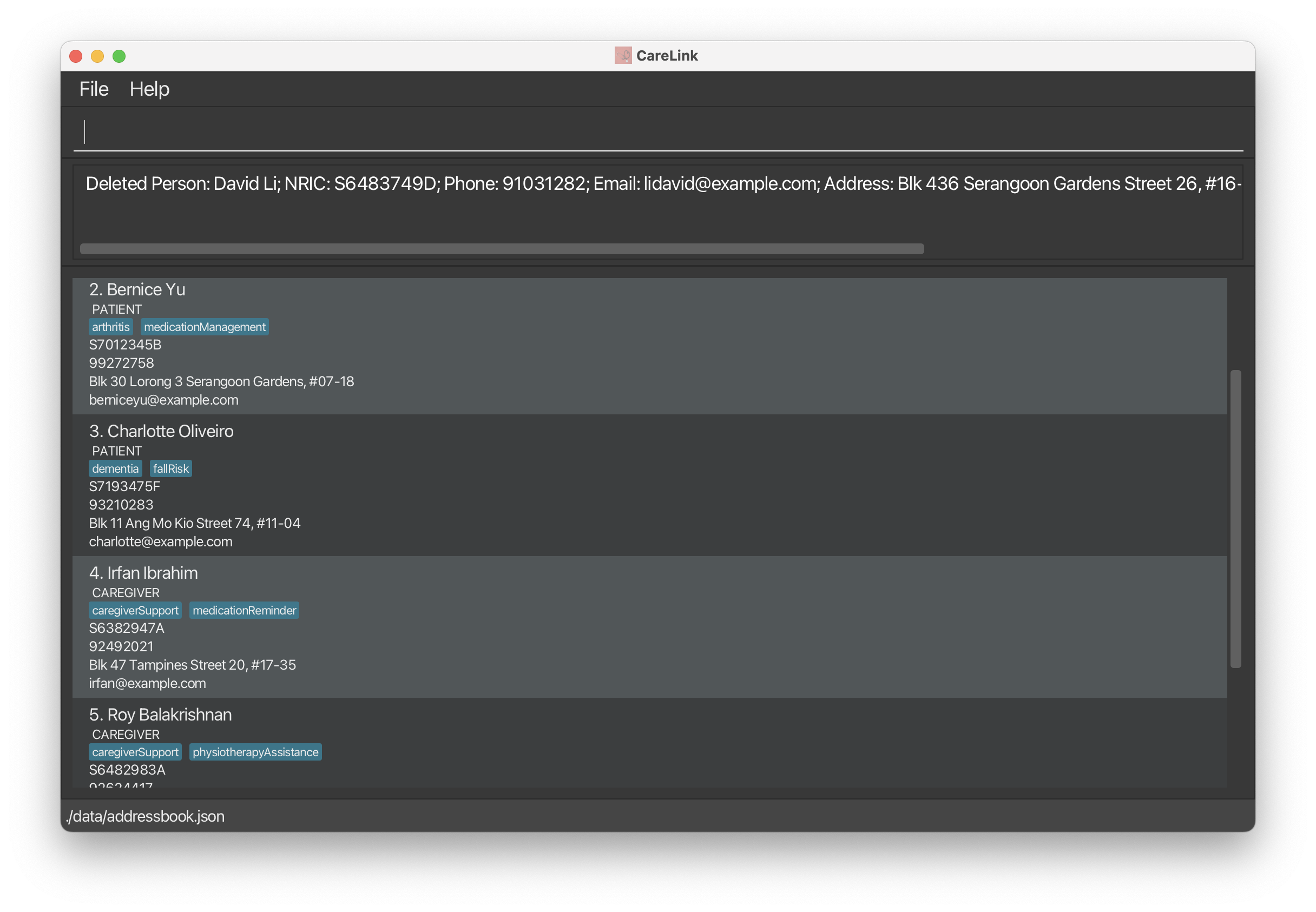 Figure 14: Display after a successful delete command, showing the removed person is no longer listed
Possible Errors:
-
The patient NRIC provided is not found- When the specified NRIC does not exist in CareLink
Managing Appointments
Adding an appointment: addapp
Use this command to add an appointment for a person in CareLink.
Use this command format: addapp nric/NRIC d/DATE start/START_TIME end/END_TIME
- The
NRICmust belong to a person already in CareLink -
DATEUse the formatDD/MM/YYYY(e.g. 01/01/2025) -
START_TIMEandEND_TIMEmust be in 24-hour formatHH:MM(e.g 14:30) - Ensure that the appointment meets the following criteria:
- Start time must be before end time
- Appointment must be in the future
- Must not overlap with existing appointments
- The default status of an appointment when added is PENDING. See the
updatestatuscommand to know more.
Examples:
-
addapp nric/S6283947C d/01/01/2025 start/10:00 end/11:00Use this command to add a one-hour appointment on January 1st, 2025
The example of using the addapp command in CareLink appears below:
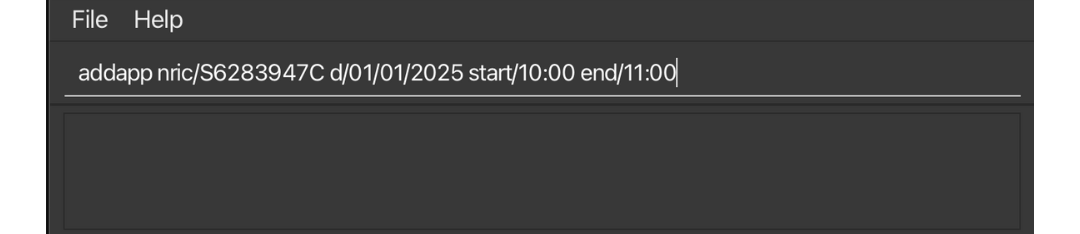 Figure 15: Example of using the
 addapp command to add an appointment for a person in CareLink
When the command succeeds, the appointment will be added, which can be found using the findapp command
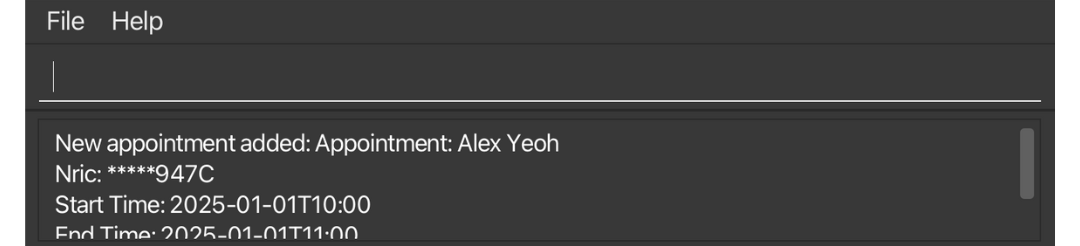 Figure 16: Success mesage displayed after using the
 addapp command
-
addapp nric/S6283947C d/15/03/2025 start/14:30 end/16:00Use this command to add a 90-minute appointment on March 15th, 2025
Warning: CareLink is designed for independent geriatricians' use during office hours. All appointments must start and end on the same day.
Tip:
You’ll see appointment start and end times displayed in a format that includes a ‘T’ between the date and time (e.g., 2025-01-01T10:00). This “T” serves as a separator and is part of the standard ISO 8601 date-time format, which ensures consistency across systems.
Warning:
When using the addapp command, ensure that the minutes in the start and end times do not exceed :59. For example, a valid time format is 10:30, not 10:60.
Common errors and their meanings:
-
Incorrect NRIC. Person not found- Check that the NRIC exists in CareLink. -
Invalid date- Make sure to use DD/MM/YYYY format (e.g 01/01/2025). -
Invalid time- Make sure to use HH:MM format in 24-hour time (e.g 14:30). -
Start time must be before end time- Check your appointment times. -
Start time must be in the future- Can’t schedule appointments in the past. -
An appointment already exists at this date and time- The person or another person already has an appointment that overlaps with this time slot. -
Please do not enter anything before the keywords- Do not add anything between the command wordaddapp. The keywords here refer to the parameters.
Editing an appointment: editapp
Use this command to edit an existing appointment for a person in CareLink
Use this command format: editapp nric/NRIC d/DATE start/START_TIME [newd/DATE] [newstart/START_TIME] [newend/END_TIME]
Constraints
- The
NRICmust belong to a person already in CareLink. -
DATEUse the formatDD/MM/YYYY(e.g 01/01/2025). -
START_TIMEandEND_TIMEmust be in 24-hour formatHH:MM(e.g 14:30). - The edited appointment follows the same rules as add appointment:
- Start time must be before end time.
- Appointment must be in the future.
- Must not overlap with existing appointments.
Examples:
-
editapp nric/S6283947C d/01/01/2025 start/10:00 newd/02/01/2025Changes the appointment date, but the timings remain the same.
The example of using the editapp command in CareLink appears below:
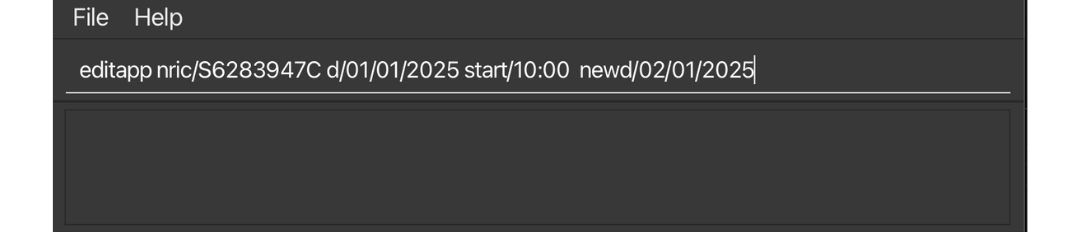 Figure 17: Example of using the
 editapp command to edit an appointment in CareLink
When the command succeeds, the appointment will be edited, which can be found using the findapp command
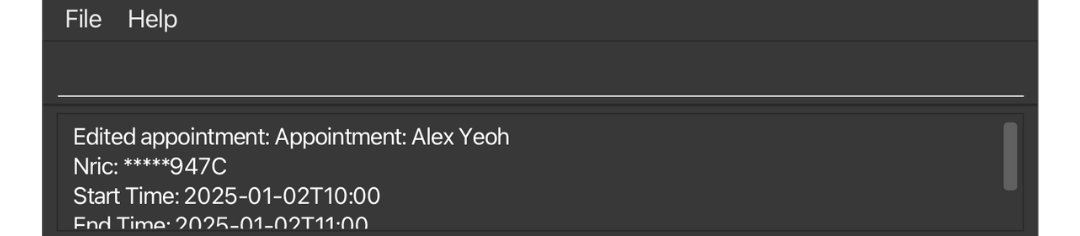 Figure 18: Success mesage displayed after using the
 editapp command
-
editapp nric/S6283947C d/02/01/2025 start/10:00 newstart/08:00 newend/09:00Shifts the appointment timing forward, but appointment remains on the same day.
Tip:
To edit an appointment, you only need the start time. The end time is not required since CareLink can identify the appointment uniquely by the person, date, and start time.
Common errors and their meanings:
-
Incorrect NRIC. Person not found- Check that the NRIC exists in CareLink. -
This appointment does not exist in CareLink- The specified appointment cannot be found. -
At least one field to edit must be provided.- You must specify at least one field to change. -
Invalid date- Make sure to use DD/MM/YYYY format (e.g 01/01/2025). -
Invalid time- Make sure to use HH:MM format in 24-hour time (e.g 14:30). -
Start time must be before end time- Check your edited appointment times. -
Start time must be in the future- Can’t schedule appointments in the past. -
An appointment already exists at this date and time- The person or another person already has an appointment that overlaps with this time slot. -
Please do not enter anything before the keywords- Do not add anything between the command wordeditapp. The keywords here refer to the parameters.
Updating Status of an appointment: updatestatus
Updates the status of an existing appointment. The status can be PENDING or COMPLETED.
Use this command format: updatestatus nric/NRIC d/DATE start/START_TIME status/STATUS
- The
NRICmust belong to a person with an existing appointment. - The
DATEmust be in this format:DD/MM/YYYY(e.g 01/01/2025). -
START_TIMEmust be in 24-hour formatHH:MM(e.g 14:30). - The
STATUSmust be eitherPENDINGorCOMPLETED(case-insensitive). - The appointment must exist at the specified date and time for the person.
Examples:
-
updatestatus nric/S6283947C d/02/01/2025 start/10:00 status/completedupdates the status to completed for the appointment on January 2nd, 2025 at 10:00.
The example of using the updatestatus command in CareLink appears below:
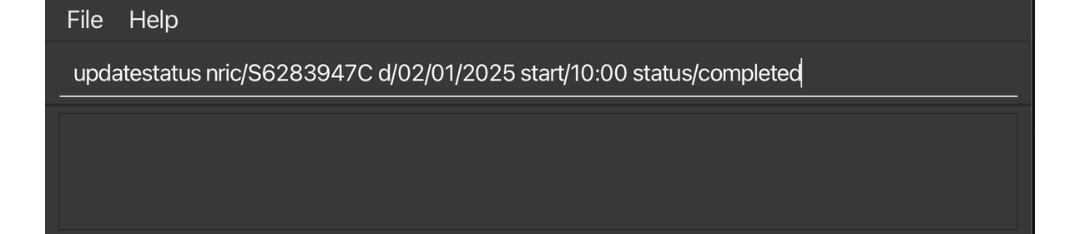 Figure 19: Example of using the
 updatestatus command to update status of an appointment in CareLink
When the command succeeds, the status of the appointment will be edited, which can be confirmed using the findapp command
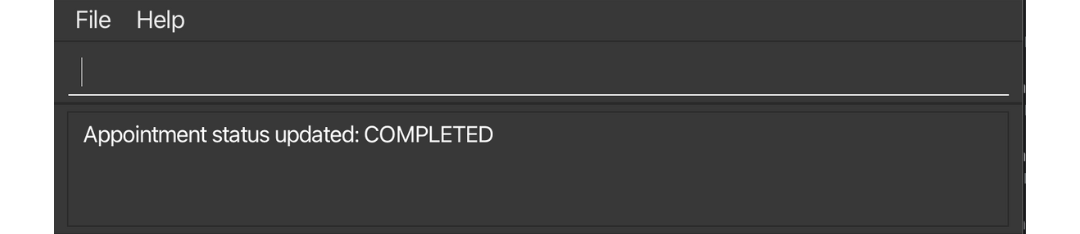 Figure 20: Success mesage displayed after using the
 updatestatus command
-
updatestatus nric/S6283947C d/02/01/2025 start/10:00 status/pendingupdates the status to pending for the appointment on January 2nd, 2025 at 10:00.
Tip:
To change the status of an appointment, you only need the start time. The end time is not required since CareLink can identify the appointment uniquely by the person, date, and start time.
Common errors and their meanings:
-
Incorrect NRIC. Person not found- Check that the NRIC exists in CareLink. -
Invalid date- Make sure to useDD/MM/YYYYformat (e.g. 01/01/2025). -
Invalid time- Make sure to useHH:MMformat in 24-hour time (e.g. 14:30). -
This appointment does not exist in CareLink- There is no appointment at the specified date and time for this person. -
Status should only be 'COMPLETED' or 'PENDING'- The status can only take in 2 options, completed or pending. -
Please do not enter anything before the keywords- Do not add anything between the command wordupdatestatus. The keywords here refer to the parameters
Deleting an appointment: deleteapp
Deletes an existing appointment for a person in CareLink.
Use this command format: deleteapp nric/NRIC d/DATE start/START_TIME
- The
NRICmust belong to a person with an existing appointment. - The
DATEmust be in this format:DD/MM/YYYY(e.g 01/01/2025) - The
START_TIMEmust be in 24-hour formatHH:MM(e.g 14:30) - The appointment must exist at the specified date and time for the person
Examples:
-
deleteapp nric/S6283947C d/02/01/2025 start/10:00deletes the appointment on January 2nd, 2025 at 10:00
The example of using the deleteapp command in CareLink appears below:
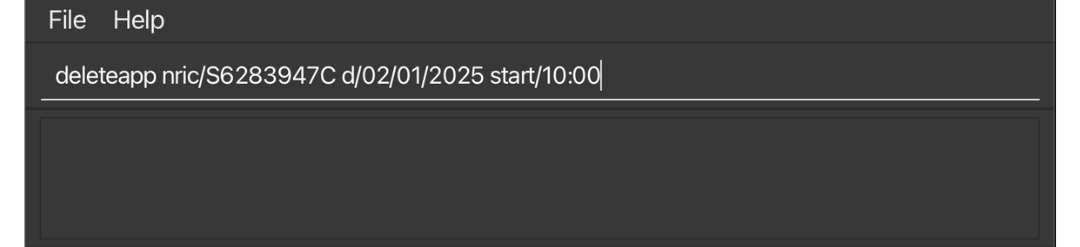 Figure 21: Example of using the
 deleteapp command to delete an appointment in CareLink
When the command succeeds, the appointment will be deleted, which can be found using the findapp command
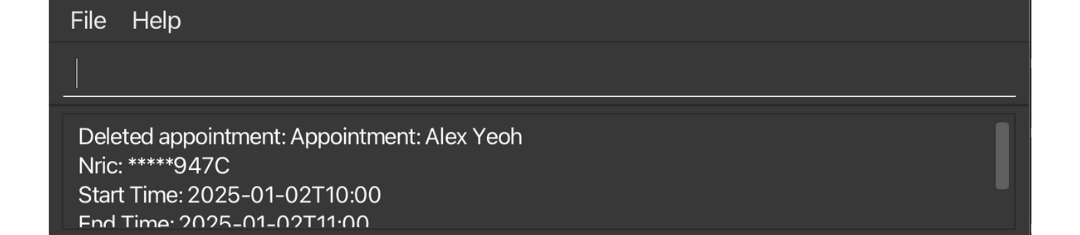 Figure 22: Success mesage displayed after using the
 deleteapp command
-
deleteapp nric/S6283947C d/15/03/2025 start/14:30deletes the appointment on March 15th, 2025 at 14:30
Tip:
To delete an appointment, you only need the start time. The end time is not required since CareLink can identify the appointment uniquely by the person, date, and start time.
Common errors and their meanings:
-
Incorrect NRIC. Person not found- Check that the NRIC exists in CareLink. -
Invalid date- Make sure to use DD/MM/YYYY format (e.g. 01/01/2025). -
Invalid time- Make sure to use HH:MM format in 24-hour time (e.g. 14:30). -
This appointment does not exist in CareLink- There is no appointment at the specified date and time for this person. -
Please do not enter anything before the keywords- Do not add anything between the command worddeleteapp. The keywords here refer to the parameters.
Locating appointments by date-time range: findapp
Finds and lists appointment that falls within the specified date-time range. The command displays detailed information about the appointments such as the patient’s name, phone, email, NRIC, caregivers, tags, and the appointment’s start and end dates and times.
Use this command format: findapp sdate/START_DATE start/START_TIME edate/END_DATE end/END_TIME
-
sdate/01/01/2024sets the search start date to January 1, 2024. -
start/10:00sets the search start time to 10:00 AM. -
edate/30/10/2024sets the search end date to October 30, 2024. -
end/12:00sets the search end time to 12:00 PM. -
findapp sdate/01/01/2024 start/10:00 edate/30/10/2024 end/12:00does not list an appointment that starts before 12:00 PM and ends after 12:00 PM on 30/10/2024. -
findapp sdate/01/01/2024 start/10:00 edate/30/10/2024 end/12:00does not list an appointment that starts before 10:00 AM and ends after 10:00 PM on 01/01/2024.
Examples:
If you have cleared your appointments, and want to try the below command, you can first add appointment as follows:
addapp nric/S7012345B d//01/2025 start/10:00 end/11:00
Then you can try to find appointment using the following command:
-
findapp sdate/01/01/2025 start/10:00 edate/02/01/2025 end/12:00finds and lists appointments that starts and ends within the specified date-time range.
The example below of the result obtained from the findapp command appears below:
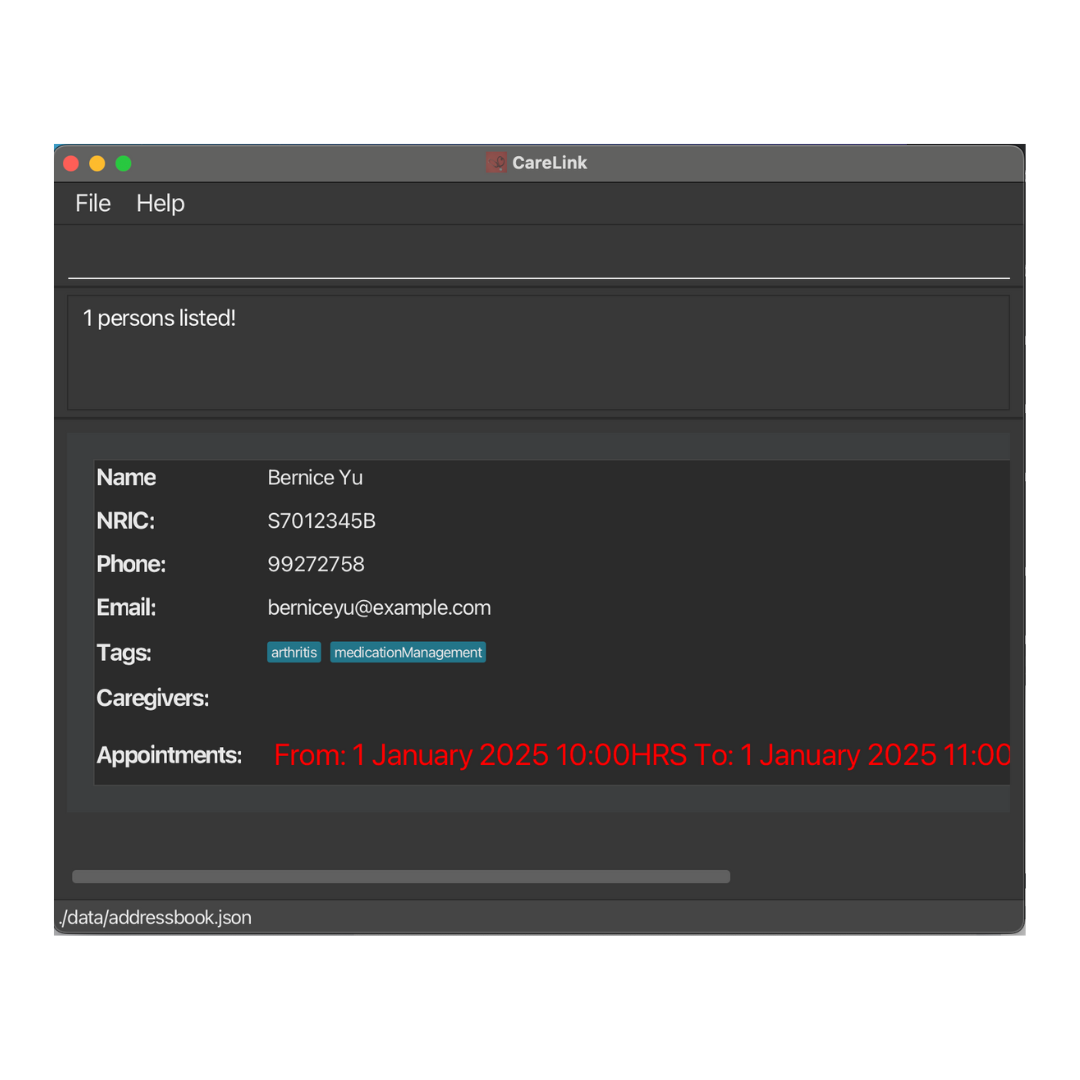 Figure 23: Example of using the
 findapp command to locate appointments within a specific date-time range
-
findapp sdate/01/01/2024 start/10:00 edate/30/10/2024 end/12:00finds and lists appointments that starts and ends within the specified date-time range.
Note:
When using date ranges for searching appointments, ensure your end date comes after your start date. For example, searching from 01/01/2024 to 30/12/2024 is valid, but searching from 01/01/2025 to 30/10/2024 will always return 0 results since no appointments can exist in an impossible time range.
Possible Errors:
-
Invalid date. Please use the DD/MM/YYYY format- When the date format is incorrect. -
Invalid time. Please use the HH:MM format- When the time format is incorrect.
Other important commands
Clearing all entries: clear confirm
Clears all entries from the address book after receiving confirmation.
Use this command format: clear confirm
- You must type
confirmexplicitly to execute this command. Any other input will not clear the address book.
Examples:
-
clear confirmclears all entries from the address book.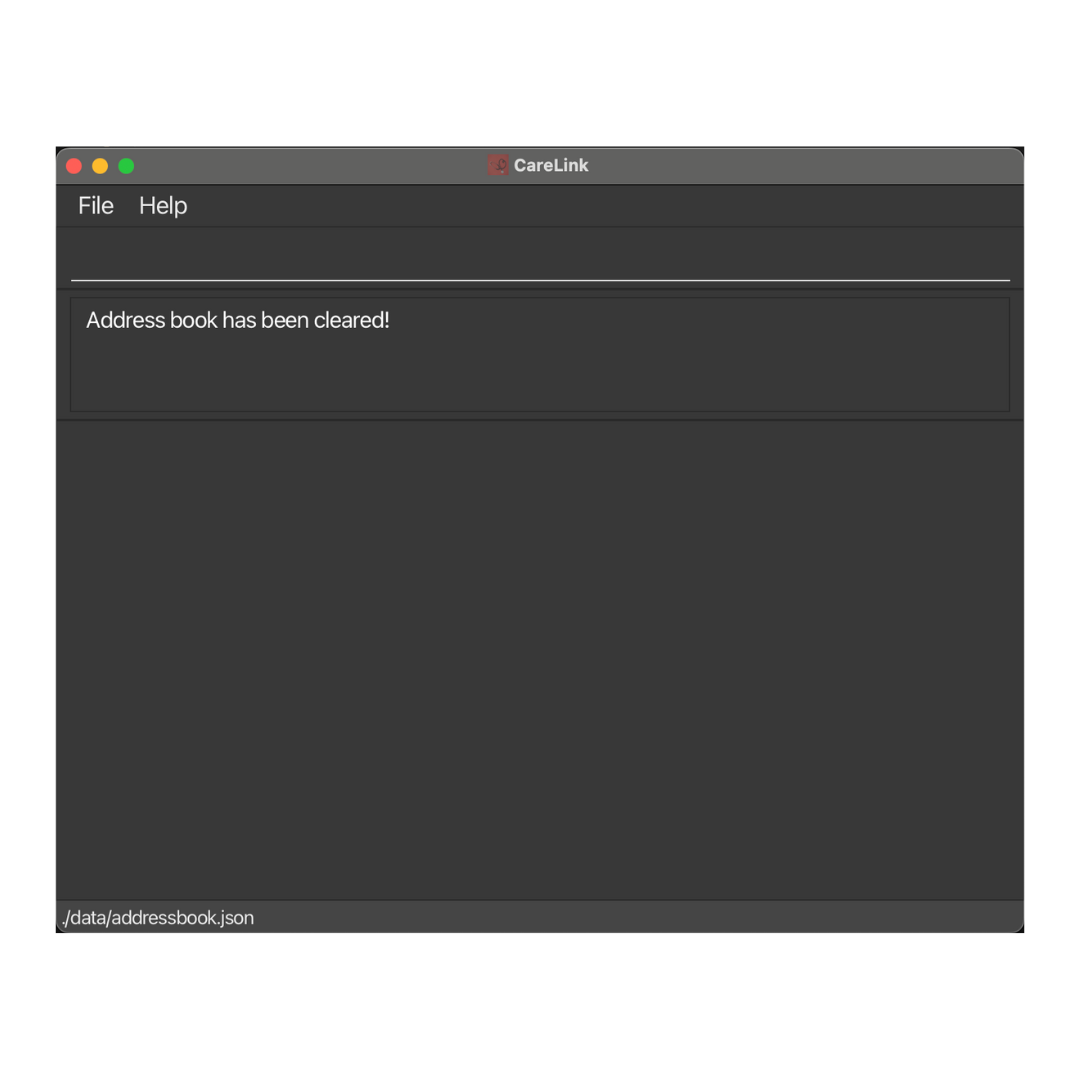 Figure 24: Example of using the
 clear confirmcommand to clear all entries in CareLink -
clearwithoutconfirmwill prompt you to include the confirmation keyword.
Exiting the program : exit
Exits the program.
Use this command format: exit
About your data
Saving the data
CareLink automatically saves data to the hard disk after every command that changes it, so you don’t need to save manually.
Editing the data file
CareLink saves data automatically as a JSON file located at [JAR file location]/data/addressbook.json. Advanced users are welcome to update data directly by editing that data file.
 Caution:
If your changes to the data file make its format invalid, CareLink will discard all data and start with an empty data file in the next run. Hence, it is recommended to take a backup of the file before editing it.
Caution:
If your changes to the data file make its format invalid, CareLink will discard all data and start with an empty data file in the next run. Hence, it is recommended to take a backup of the file before editing it.Furthermore, certain edits can cause the AddressBook to behave in unexpected ways (e.g if a value entered is outside of the acceptable range). Therefore, edit the data file only if you are confident that you can update it correctly.
FAQ and other important information
Q: How do I transfer my data to another Computer?
A: Install the app in the other computer and overwrite the empty data file it creates with the file that contains the data of your previous CareLink home folder.
Valid NRIC rules
Make sure each NRIC adheres to the following format and constraints:
- The NRIC must be 9 characters long.
- The first character must be one of the following letters: ‘S’, ‘T’, ‘F’, or ‘G’. (case-insensitive)
- ‘S’ and ‘T’ are for Singapore Citizens and Permanent Residents.
- ‘F’ and ‘G’ are for Foreigners.
- The next 7 characters must be digits.
- The last character must be an uppercase letter, which serves as a checksum to validate the NRIC.
- The checksum is computed based on a specific algorithm using the 7 digits of the NRIC.
Known Issues
-
Multiple Monitor Setup: The GUI may open off-screen when switching from multi-monitor to single-monitor setup.
-
Solution: Delete
preferences.jsonand restart the application.
-
Solution: Delete
-
Help Window: After minimizing the Help Window, using the
helpcommand,Helpmenu, orF1shortcut will not open a new window.- Solution: Manually restore the minimized Help Window.
-
Resized Window Visibility: Reducing the window size below a certain threshold can obscure interface elements, impacting usability.
- Solution: For optimal use, we recommend a screen resolution of at least 1280x720 pixels and maintaining a minimum window size for clarity.
-
Long Tag Handling: When adding an excessively long tag, it may hide other tags in the display rather than wrapping or truncating.
-
Solution: Avoid using overly long tags. Optimally, long tags should truncate with an ellipsis (
...) once they reach the edge of the GUI.
-
Solution: Avoid using overly long tags. Optimally, long tags should truncate with an ellipsis (
-
Phone Number Field Length: The phone number field allows for very long entries, which may not be practical. The field currently accepts a minimum of 3 digits, which is shorter than standard international phone numbers.
- Workaround: For best results, enter phone numbers within a typical range of 7–15 digits. Numbers exceeding 15 digits may not display or function as expected.
-
Full-Screen Help Window: When the app is in full-screen mode, clicking the help button opens the Help Window in a new full-screen view rather than as a pop-up overlay.
- Solution: Exit full-screen mode before opening the Help Window to have it display as a pop-up.
-
Inconsistent NRIC Censorship in Success Messages: In some success messages, the NRIC appears fully displayed, while in others, it is censored
- Impact: This inconsistency is purely visual and does not affect system functionality or data integrity.
-
UI Not Updated After
findorfindappCommands: When executing certain commands immediately followingfindorfindappcommands, the UI would continue to display the result fromfindorfindappcommands.-
Workaround: Use the
listcommand immediately afterfindorfindappcommands to refresh and update the UI.
-
Workaround: Use the
-
After editing a person, the existing links are lost: When a person is edited, the existing links no longer remain.
-
Workaround: While we actively fix this, you can relink your patients and caregivers using the
linkcommand just as easily. We would recommend to add a note to the person when you first link the person to keep a record, as well as easily relink if required.
-
Workaround: While we actively fix this, you can relink your patients and caregivers using the
-
Role Removed When Using
editCommand with Emptyrole/Argument: Using theeditcommand with therole/prefix and an empty argument currently removes the role from a person’s profile, even though each person must have a role-
Workaround: Always specify a role (either
PATIENTorCAREGIVER) when using theeditcommand with therole/prefix to avoid removing the role.
-
Workaround: Always specify a role (either
Complete Command summary
| Action | Format, Examples |
|---|---|
| Add |
add n/NAME nric/NRIC p/PHONE_NUMBER e/EMAIL a/ADDRESS role/ROLE [t/TAG]… e.g add n/John Doe nric/S8484131E p/98765432 e/johnd@example.com a/311, Clementi Ave 2, #02-25 t/backPain role/patient
|
| Link |
link patient/PATIENT_NRIC caregiver/CAREGIVER_NRIC e.g. link patient/S7193475F caregiver/S6482983A
|
| Deletelink |
deletelink patient/PATIENT_NRIC caregiver/CAREGIVER_NRIC e.g. deletelink patient/S7193475F caregiver/S6482983A
|
| Addnote |
addnote nric/NRIC note/NOTES e.g. addnote nric/S6283947C note/stopped taking XYZ medication on ABC day
|
| Clear | clear confirm |
| Delete |
delete NRICe.g delete S6483749D
|
| Edit |
edit NRIC [n/NAME] [p/PHONE_NUMBER] [e/EMAIL] [a/ADDRESS] [t/TAG]… e.g edit S1234567D n/James Lee e/jameslee@example.com
|
| Find |
find [n/NAME] [nric/NRIC] [role/ROLE] [t/TAG]...e.g find n/Alex nric/S1234567D
|
| Find Appointment |
findapp [sdate/START_DATE] [start/START_TIME] [edate/END_DATE] [end/END_TIME]e.g findapp sdate/01/01/2024 start/10:00 edate/30/10/2024 end/12:00
|
| Add Appointment |
addapp nric/NRIC d/DATE start/START_TIME end/END_TIMEe.g addapp nric/S1234567D d/01/01/2025 start/10:00 end/11:00
|
| Edit Appointment |
editapp nric/NRIC d/DATE start/START_TIME [newd/DATE] [newstart/START_TIME] [newend/END_TIME]e.g editapp nric/S1234567D d/01/01/2025 start/10:00 end/11:00 newd/02/01/2025 newstart/08:00 newend/09:00
|
| Update Appointment Status |
updatestatus nric/NRIC d/DATE start/START_TIME status/STATUS e.g updatestatus nric/S1234567D d/01/01/2025 start/10:00 status/completed
|
| Delete Appointment |
deleteapp nric/NRIC d/DATE start/START_TIMEe.g deleteapp nric/S9876543B d/15/03/2025 start/14:30
|
| List | list |
| Help | help |