Developer Guide
Table of Contents
- Acknowledgements
- Setting up, Getting Started
- Design
- Implementation
- Documentation, Logging, Testing, Configuration, Dev-Ops
- Appendix: Requirements
- Appendix: Instructions for Manual Testing
- Appendix: Planned Enhancements
Acknowledgements
This project is based on the AddressBook-Level 3 (AB-3) project created by the SE-EDU initiative (UG, DG, GitHub Page).
Setting up, getting started
Refer to the guide Setting up and getting started.
Design
 Tip: The
 .puml files used to create diagrams in this document docs/diagrams folder. Refer to the PlantUML Tutorial at se-edu/guides to learn how to create and edit diagrams.
Architecture
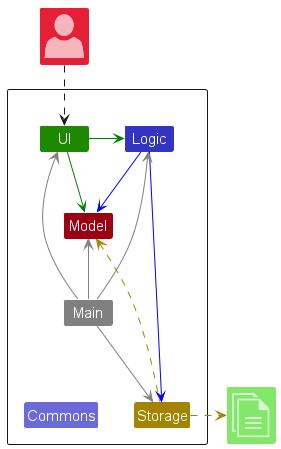
The Architecture Diagram given above explains the high-level design of CareLink.
Given below is a quick overview of main components and how they interact with each other.
Main components of the architecture
Main (consisting of classes Main and MainApp) is in charge of the app launch and shut down.
- At app launch, it initializes the other components in the correct sequence, and connects them up with each other.
- At shut down, it shuts down the other components and invokes cleanup methods where necessary.
The bulk of the app’s work is done by the following four components:
-
UI: The UI of the App. -
Logic: The command executor. -
Model: Holds the data of the App in memory. -
Storage: Reads data from, and writes data to, the hard disk.
Commons represents a collection of classes used by multiple other components.
How the architecture components interact with each other
The Sequence Diagram below shows how the components interact with each other for the scenario where the user issues the command delete S1234567D.
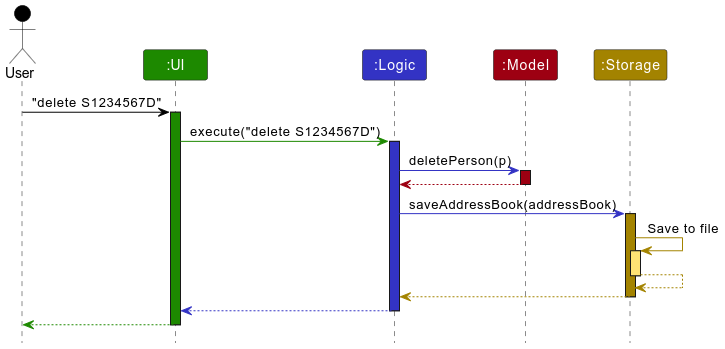
Each of the four main components (also shown in the diagram above),
- defines its API in an
interfacewith the same name as the Component. - implements its functionality using a concrete
{Component Name}Managerclass (which follows the corresponding APIinterfacementioned in the previous point.
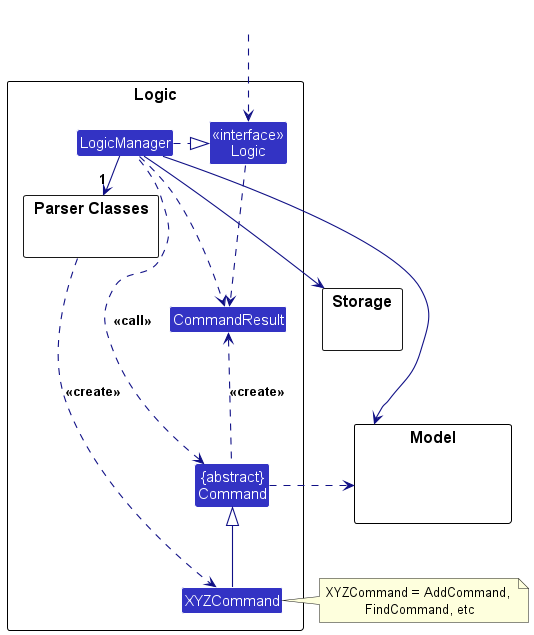
For example, the Logic component defines its API in the Logic.java interface and implements its functionality using the LogicManager.java class which follows the Logic interface. Other components interact with a given component through its interface rather than the concrete class (reason: to prevent outside component’s being coupled to the implementation of a component), as illustrated in the (partial) class diagram below.
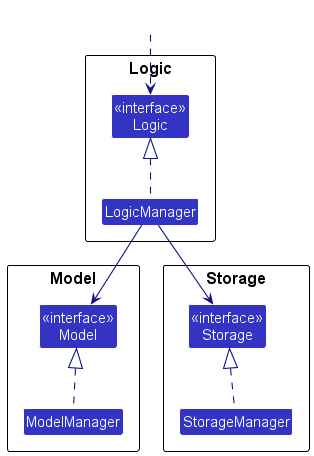
The sections below give more details of each component.
UI component
The API of this component is specified in Ui.java
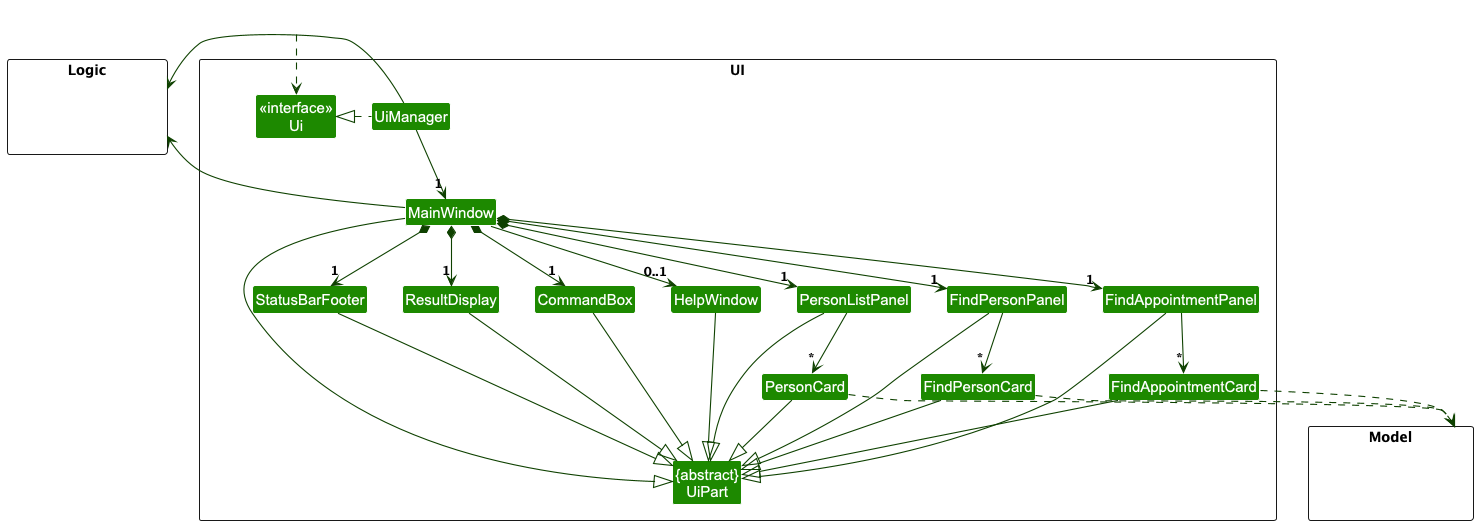
The UI consists of a MainWindow that is made up of parts e.g.CommandBox, ResultDisplay, PersonListPanel,FindPersonList,FindAppointmentList, StatusBarFooter etc. All these, including the MainWindow, inherit from the abstract UiPart class which captures the commonalities between classes that represent parts of the visible GUI.
The UI component uses the JavaFx UI framework. The layout of these UI parts are defined in matching .fxml files that are in the src/main/resources/view folder. For example, the layout of the MainWindow is specified in MainWindow.fxml
The UI component,
- executes user commands using the
Logiccomponent. - listens for changes to
Modeldata so that the UI can be updated with the modified data. - keeps a reference to the
Logiccomponent, because theUIrelies on theLogicto execute commands. - depends on some classes in the
Modelcomponent, as it displaysPersonobject residing in theModel. - Depending on the command executed, a different layout is displayed.
- For
findcommand,FindPersonListis rendered. - For
findappcommand,FindAppointmentListis rendered. - For all other commands,
PersonListPanelis rendered.
- For
Logic component
API : Logic.java
Here’s a (partial) class diagram of the Logic component:
The sequence diagram below illustrates the interactions within the Logic component, taking execute("delete S1234567D") API call as an example.
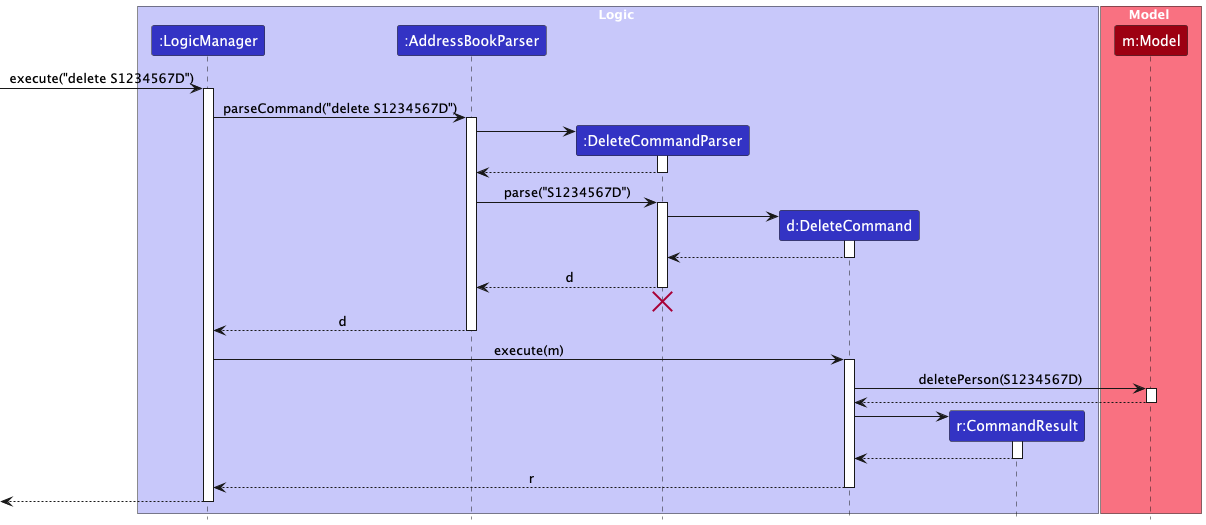
 Note: The lifeline for
 DeleteCommandParser should end at the destroy marker (X) but due to a limitation of PlantUML, the lifeline continues till the end of diagram.
Clear Confirm Command Sequence Diagram
The sequence diagram below shows how the clear confirm command is processed by the Logic component:
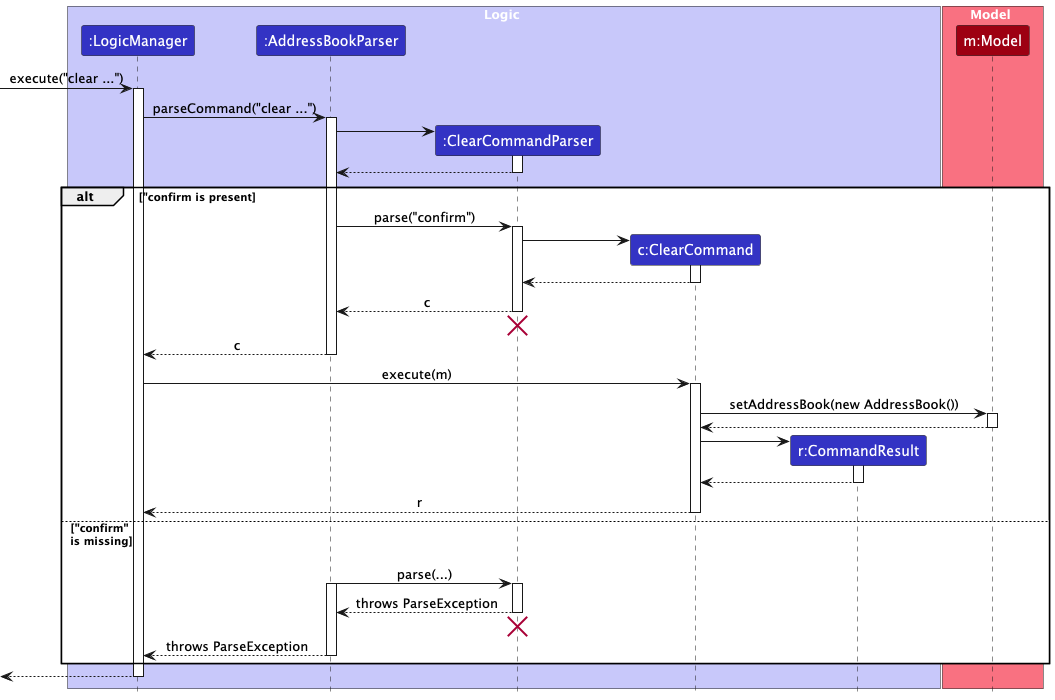
Note: This diagram illustrates the additional step where the command checks for explicit confirmation before clearing all data.
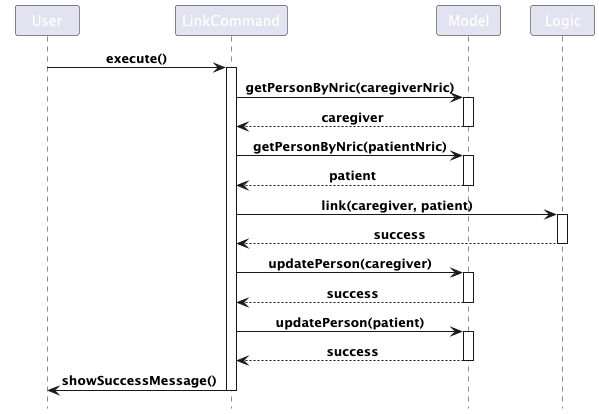
Link Command Sequence Diagram
The sequence diagram below shows how the link command is processed by the Logic component:
How the Logic component works:
- When
Logicis called upon to execute a command, it is passed to anAddressBookParserobject which in turn creates a parser that matches the command (e.g.,DeleteCommandParser) and uses it to parse the command. - This results in a
Commandobject (more precisely, an object of one of its subclasses e.g.,DeleteCommand) which is executed by theLogicManager. - The command can communicate with the
Modelwhen it is executed (e.g. to delete a person).
Note that although this is shown as a single step in the diagram above (for simplicity), in the code it can take several interactions (between the command object and theModel) to achieve. - The result of the command execution is encapsulated as a
CommandResultobject which is returned back fromLogic.
Here are the other classes in Logic (omitted from the class diagram above) that are used for parsing a user command:
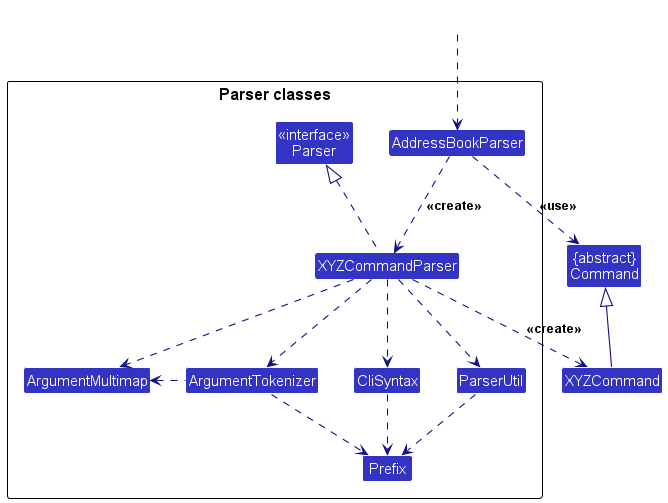
How the parsing works:
- When called upon to parse a user command, the
AddressBookParserclass creates anXYZCommandParser(XYZis a placeholder for the specific command name e.g.,AddCommandParser) which uses the other classes shown above to parse the user command and create aXYZCommandobject (e.g.,AddCommand) which theAddressBookParserreturns back as aCommandobject. - All
XYZCommandParserclasses (e.g.,AddCommandParser,DeleteCommandParser, …) inherit from theParserinterface so that they can be treated similarly where possible e.g, during testing.
Model component
API : Model.java
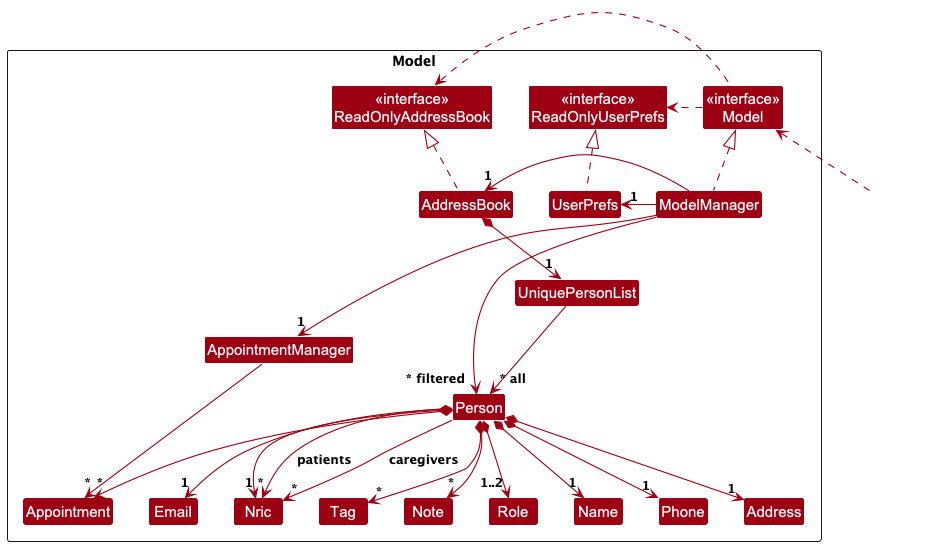
The Model component,
- stores the address book data i.e., all Person objects in a UniquePersonList object. Each Person can have multiple roles (patient and/or caregiver) and contains their personal details, appointments, and relationships.
- stores the currently ‘selected’
Personobjects (e.g., results of a search query) as a separate filtered list, which is exposed to outsiders as an unmodifiableObservableList<Person>. The UI can be bound to this list so that it automatically updates when the data changes. - stores a
UserPrefobject that represents the user’s preferences. This is exposed to the outside as aReadOnlyUserPrefobject. - manages relationships between patients and caregivers through a system of NRIC references. A Person can be both a patient and a caregiver, with each role stored in a
Set<Role>. Patient-caregiver relationships are tracked usingSet<Nric>fields for both caregivers and patients. - manages all appointments through an
AppointmentManagerobject that prevents conflicting appointments and maintains appointment-person relationships - stores appointments for each
Personin aSet<Appointment>that can be filtered and retrieved by time
The Model does not depend on any of the other three components (as the Model represents data entities of the domain, they should make sense on their own without depending on other components).
Note: The updated model introduces a Caregiver class linked to a Patient object through a unique patientID. The system maintains this relationship and ensures that caregivers can only be associated with valid patients.Storage component
API : Storage.java
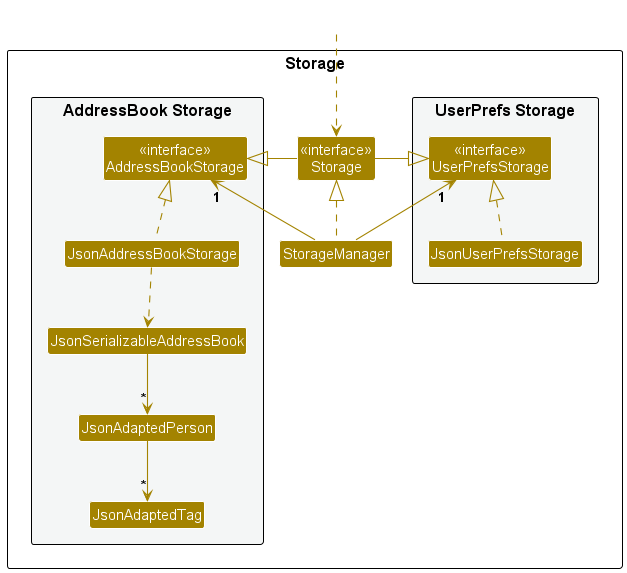
The Storage component,
- can save both address book data and user preference data in JSON format, and read them back into corresponding objects.
- inherits from both
AddressBookStorageandUserPrefStorage, which means it can be treated as either one (if only the functionality of only one is needed). - depends on some classes in the
Modelcomponent (because theStoragecomponent’s job is to save/retrieve objects that belong to theModel)
Common classes
Classes used by multiple components are in the seedu.address.commons package.
Implementation
This section describes some noteworthy details on how certain features are implemented.
Appointment Management Feature
The appointment management feature allows users to add, delete, edit and track appointments for each person. This section describes the key details of the implementation.
The feature is primarily facilitated by the AppointmentManager class, with appointment-related operations exposed through the Model interface. The appointment management system prevents scheduling conflicts and maintains the relationships between persons and their appointments.
Given below is a detailed explanation of how the appointment system works.
Step 1. When the app starts up, ModelManager creates an AppointmentManager that maintains a central list of all appointments across all persons.
Step 2. When a user adds an appointment through the addapp command, the following sequence of operations happen:
- The
ModelManagerretrieves the person using their NRIC. - The appointment is validated for:
- Start time being before end time
- Start time being in the future
- The person existing in the system
- The
AppointmentManagerchecks for conflicts with existing appointments. - If all validations pass:
- The appointment is added to both the person’s appointment list
- The central appointment list is updated
- The success/failure result is returned to the user.
Step 3. When an appointment is removed through the deleteapp command:
- The person is retrieved using their NRIC
- The appointment is found based on the provided date and time
- The appointment is removed from the person’s list
- The central appointment list is updated
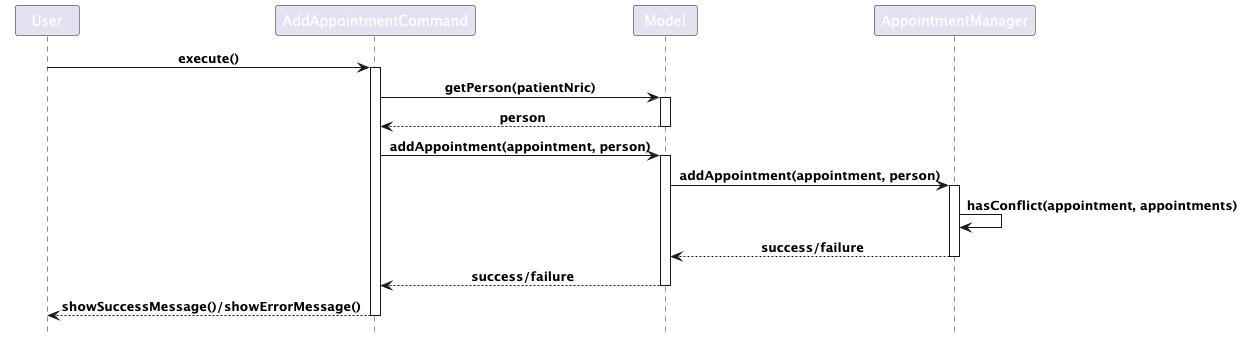
The following classes play important roles in the appointment system:
-
ModelManager: Implements theModelinterface and serves as the facade for appointment operations -
AppointmentManager: Manages the central list of appointments and handles conflict checking -
Person: Stores a list of appointments specific to that person -
Appointment: Represents a single appointment with start time, end time, and description
Here is how some key operations are implemented:
- Conflict checking: A conflict occurs when a new appointment overlaps in time with any existing appointment. An overlap happens when:
The new appointment starts before another appointment ends, AND The new appointment ends after another appointment starts
-
Adding an appointment: The
addAppointmentmethod inAppointmentManagerfirst checks for conflicts, then adds the appointment to both the person’s list and updates the central list. A boolean is returned to indicate success or failure. -
Updating central list: The
updatemethod inAppointmentManagerretrieves all appointments from all persons, sorts them by start time, and checks for any conflicts that might have been introduced.
The centralized appointment management through AppointmentManager ensures that:
- No conflicting appointments can be created
- A single source of truth exists for all appointments
- Appointments can be efficiently retrieved for any person
- All appointment operations maintain data consistency
Documentation, logging, testing, configuration, dev-ops
Appendix: Requirements
Product scope
Target user profile:
- Independent Geriatricians managing elderly patients
- Those patients have chronic conditions
- Geriatrician can type fast
- Prefers CLI over GUI
- Needs to manage several patients
- Value proposition: We specifically target Geriatricians by tailoring to their requirements of managing elderly patients when it comes to tracking chronic conditions, coordinating care, and maintaining regular follow-ups.
User Stories
Priorities: High (must have) - * * *, Medium (nice to have) - * *, Low (unlikely to have) - *
| Priority | As a… | I want to… | So that I can… |
|---|---|---|---|
* * * |
new user | use sample data to walk through features | explore the app without inputting my own data |
* * * |
new user | remove sample data | start using the app for my own data |
* * * |
new user | set up a doctor profile | customize the system based on my professional needs |
* * * |
new user | add patient details via CLI | efficiently manage a heavy patient load |
* * * |
new user | use the help command | refer to available commands and usage instructions |
* * * |
regular user | store patient data | view patient details across multiple sessions without re-entering |
* * * |
regular user | distinguish between duplicate patients | avoid confusion when patients have the same name |
* * * |
regular user | edit patient data | update patient information such as contact details |
* * * |
regular user | delete patient data | remove patients who no longer need to be tracked |
* * * |
regular user | schedule follow-up appointments | quickly update and track patient follow-ups |
* * * |
novice user | filter appointments by date | plan my day effectively by viewing scheduled appointments |
* * * |
novice user | filter by condition | prioritize patients based on their medical conditions |
* * * |
novice user | filter by patients | find patients with higher health risks to follow up with them |
* * |
novice user | send email reminders to patients | remind patients about upcoming appointments |
* * |
experienced user | batch update patient contact records | streamline updates after events like mass screenings |
* |
experienced user | batch delete patient contact records | declutter the system by removing multiple patients at once |
* |
experienced user | retrieve patient medication history | quickly find past medications in emergency situations |
* |
experienced user | retrieve caregiver information | inform caregivers to enhance patient care |
* |
experienced user | use aliases for commands | speed up command usage in the CLI app |
* |
experienced user | remove inactive patients from default view | declutter the app and focus on active patients |
* |
experienced user | use fuzzy search to retrieve patient details | find patient information even with partial or incomplete data |
* |
experienced user | export patient data to a CSV file | backup data and use it in other applications |
* |
experienced user | import patient data from a CSV file | restore backups or transfer data from other systems |
User stories for the MVP: Stories 4, 6 and 9 are for the MVP User stories for the final version: Stories 1 - 13 are for the final version.
Use Cases
Use Case 1: Add a New Person
- System: CareLink
- Use Case: UC01 - Add New Patient
- Actor: Geriatrician (Fred)
Preconditions
- None
Guarantees
- Patient details are saved only if the input data is valid.
- Duplicates are not created (NRIC uniqueness is enforced).
Main Success Scenario (MSS)
- Fred enters command to
adda new person along with their details. - CareLink requests person details.
- CareLink validates the input data.
- CareLink saves the person details to the system.
- CareLink displays a success message and shows the newly added patient in the system.
- Use case ends.
Extensions
-
4a. Invalid patient data entered:
- CareLink displays an error message indicating which data is invalid.
- Fred corrects the input, and the use case resumes from step 4.
- Use case ends.
Use Case 2: Find Person Details
- System: CareLink
- Use Case: UC02 - Find Patient Details
- Actor: Geriatrician (Fred)
Preconditions
- None
Guarantees
- The person’s details are successfully retrieved and displayed.
- The correct person’s information is displayed without errors.
Main Success Scenario (MSS)
- Fred enters command to
finda person’s details. - CareLink retrieves the person’s details.
- CareLink displays the person’s details to Fred.
- Use case ends.
Extensions
-
1a. Invalid or nonexistent person NRIC entered:
- CareLink displays an error message and prompts Fred to re-enter the correct NRIC.
- Fred corrects the NRIC, and the use case resumes from step 1.
- Use case ends.
Use Case 3: Adding a Caregiver and Linking to an Existing Patient
- System: CareLink
- Use Case: UC03 - Link Caregiver to an Existing Patient
- Actor: Geriatrician (Fred)
Preconditions
- None
Guarantees
- The caregiver is correctly linked to the specified patient, and vice versa.
Main Success Scenario (MSS)
- Fred enters command to
linka caregiver to a patient and enters the necessary details, including the caregiver’s and patient’s NRIC. - CareLink validates all input details against criteria.
- CareLink links the caregiver to the specified patient NRIC.
- CareLink confirms the link with a success message.
- Use case ends.
Extensions
-
2a. Specified Caregiver NRIC Does Not Exist:
- CareLink displays an error message, and link not formed.
- Use case ends.
-
2b. Specified Patient NRIC Does Not Exist:
- CareLink displays an error message, and link not formed.
- Use case ends.
-
2c. NRIC Given For Patient/Caregiver Does Not Match The Respective Roles:
- CareLink displays an error message, and link not formed.
- Use case ends.
Use Case 4: Update Person Details
- System: CareLink
- Use Case: UC04 - Update Patient Details
- Actor: Geriatrician (Fred)
Preconditions
- None
Guarantees
- The patient’s details are successfully updated in the system.
Main Success Scenario (MSS)
- Fred enters command to
editand provides the NRIC of patient and new details. - CareLink validates the new input.
- CareLink updates the records and confirms the update with a success message.
- Use case ends.
Extensions
-
2a. Record Does Not Exist:
- CareLink informs Fred that the patient record does not exist.
- Use case ends.
-
2b. Input Validation Fails:
- CareLink displays an error message and does not update the record.
- Use case ends.
Use Case 5: Delete Person Details
- System: CareLink
- Use Case: UC05 - Delete Patient Details
- Actor: Geriatrician (Fred)
Preconditions
- The patient exists in the system.
Guarantees
- The patient’s details are successfully removed from the system.
Main Success Scenario (MSS)
- Fred enters command to
deletea person’s details by using the NRIC. - CareLink retrieves the person’s information.
- CareLink deletes the person’s record.
- Use case ends.
Extensions
-
1a. Person Does Not Exist:
- CareLink displays an error message.
- Use case ends.
Use Case 6: Find Data by Medical Condition
- System: CareLink
- Use Case: UC06 - Find Data by Medical Condition
- Actor: Geriatrician (Fred)
Preconditions
- None
Guarantees
- Data is successfully found by the specified condition and displayed.
Main Success Scenario (MSS)
- Fred enters command to
findpatient data by medical condition. - CareLink prompts Fred to input the medical condition.
- Fred enters the medical condition.
- CareLink finds the patient data based on the specified medical condition.
- CareLink displays the found data to Fred.
- Use case ends.
Extensions
-
3a. Invalid Condition:
- CareLink displays an error message and prompts Fred to re-enter the condition.
- Use case resumes from step 3.
-
4a. No Data Found for Condition:
- CareLink informs Fred that no records were found.
- Use case ends.
Use Case 7: Find Data by Patients
- System: CareLink
- Use Case: UC07 - Find Data by Patients
- Actor: Geriatrician (Fred)
Preconditions
- None
Guarantees
- Data is successfully found by the specified patient(s) and displayed.
Main Success Scenario (MSS)
- Fred enters the command to
findpatient data by specific patients. - CareLink prompts Fred to input patient identifiers.
- Fred enters the patient identifiers.
- CareLink finds the patient data based on the specified patient identifiers.
- CareLink displays the found data to Fred.
- Use case ends.
Extensions
-
3a. Invalid Patient Identifier:
- CareLink displays an error message and prompts Fred to re-enter the identifier.
- Use case resumes from step 3.
-
4a. No Data Found for Patients:
- CareLink informs Fred that no records were found.
- Use case ends.
Use Case 8: Schedule Appointments
- System: CareLink
- Use Case: UC08 - Schedule Appointments
- Actor: Geriatrician (Fred)
Preconditions
- The person exists in the system.
Guarantees
- A follow-up appointment is successfully scheduled and confirmed.
- The appointment time is valid (start time before end time).
- The appointment is in the future.
- No duplicate appointments are created for the person.
Main Success Scenario (MSS)
- Fred enters the
addappcommand to schedule a follow-up appointment with the required details (person’s NRIC, start date/time, end date/time, description). - CareLink validates that:
- The start date/time is before the end date/time.
- The appointment is in the future.
- The person exists in the system.
- The appointment does not conflict with existing appointments.
- CareLink confirms the follow-up appointment and saves it in the system.
- CareLink displays a confirmation message with the appointment details.
- Use case ends.
Extensions
-
2a. Person Does Not Exist:
- CareLink displays an error message that the person cannot be found.
- Use case ends.
-
2b. Invalid Appointment Time:
- CareLink displays an error message that the appointment times are invalid.
- Use case ends.
-
2c. Past Appointment Time:
- CareLink displays an error message that appointments must be in the future.
- Use case ends.
-
2d. Duplicate Appointment:
- CareLink displays an error message about the conflicting appointment.
- Use case ends.
Use Case 9: Edit Existing Appointments
- System: CareLink
- Use Case: UC09 - Edit Existing Appointments
- Actor: Geriatrician (Fred)
Preconditions
- The person exists in the system.
- The appointment for that person exists in the system.
Guarantees
- The edited appointment is successfully scheduled and confirmed.
- The edited appointment time is valid (start time before end time).
- The edited appointment is in the future.
- No duplicate appointments are created for the person after editing.
Main Success Scenario (MSS)
- Fred enters the
editappcommand to schedule an edited appointment with the required details (person’s NRIC, date, start time, new date, new start time, new end time). - CareLink validates that:
- The new start date/time is before the new end date/time.
- The appointment is in the future.
- The person exists in the system.
- The appointment to be edited exists in the system.
- The appointment does not conflict with existing appointments.
- CareLink confirms the edited appointment and saves it in the system.
- CareLink displays a confirmation message with the appointment details.
- Use case ends.
Extensions
-
2a. Person Does Not Exist:
- CareLink displays an error message that the person cannot be found.
- Use case ends.
-
2b. Invalid Appointment Time:
- CareLink displays an error message that the appointment times are invalid.
- Use case ends.
-
2c. Past Appointment Time:
- CareLink displays an error message that appointments must be in the future.
- Use case ends.
-
2d. Duplicate Appointment:
- CareLink displays an error message about the conflicting appointment.
- Use case ends.
Use Case 10: Delete Appointments
- System: CareLink
- Use Case: UC10 - Delete Appointments
- Actor: Geriatrician (Fred)
Preconditions
- The person exists in the system.
- The appointment exists in the system.
Guarantees
- The specified appointment is successfully deleted from the system.
Main Success Scenario (MSS)
- Fred enters the
deleteappcommand with the required details (person’s NRIC, date, start time). - CareLink validates that:
- The person exists in the system.
- The specified appointment exists for that person at the given date and time.
- CareLink deletes the appointment from the system.
- CareLink displays a confirmation message with the deleted appointment’s details.
- Use case ends.
Extensions
-
2a. Person Does Not Exist:
- CareLink displays an error message that the person cannot be found.
- Use case ends.
-
2b. Invalid Date Format:
- CareLink displays an error message that the date format should be DD/MM/YYYY.
- Use case ends.
-
2c. Invalid Time Format:
- CareLink displays an error message that the time format should be HH:MM.
- Use case ends.
-
2d. Appointment Does Not Exist:
- CareLink displays an error message that the appointment does not exist in CareLink.
- Use case ends.
Use Case 11: Add Note to Person
- System: CareLink
- Use Case: UC11 - Add Note to Person
- Actor: Geriatrician (Fred)
Preconditions
- The person exists in the system.
Guarantees
- The note is successfully added to the person’s records.
- The note text is not empty.
Main Success Scenario (MSS)
- Fred enters the
addnotecommand with the required details (person’s NRIC, note text). - CareLink validates that:
- The person exists in the system.
- The note text is not empty.
- CareLink adds the note to the person’s records.
- CareLink displays a confirmation message showing the NRIC and the added note text.
- Use case ends.
Extensions
-
2a. Person Does Not Exist:
- CareLink displays an error message that the person cannot be found.
- Use case ends.
-
2b. Empty Note Text:
- CareLink displays an error message that the note text cannot be empty.
- Use case ends.
Use Case 12: Clear All Entries with Confirmation
- System: CareLink
- Use Case: UC12 - Clear All Entries with Confirmation
- Actor: Geriatrician (Fred)
Preconditions
- The address book contains patient data.
Guarantees
- All patient data is removed only after explicit confirmation.
- CareLink prompts Fred to use the correct command to avoid accidental data loss.
Main Success Scenario (MSS)
- Fred enters the
clear confirmcommand. - CareLink validates the command.
- CareLink clears all entries from the address book.
- CareLink displays a success message confirming that all data has been cleared.
- Use case ends.
Extensions
-
2a. Fred entered
clearwithoutconfirm:- CareLink displays a message prompting Fred to use
clear confirm. - Use case ends.
- CareLink displays a message prompting Fred to use
Use Case 13: Update Appointment Status
- System: CareLink
- Use Case: UC13 - Update Appointment Status
- Actor: Geriatrician (Fred)
Preconditions
- The patient exists in the system.
- An appointment with the specified start date and time exists for the patient.
Guarantees
- The status of the specified appointment is successfully updated.
- Only valid statuses (e.g., “COMPLETED”, “CANCELLED”) are accepted.
- The status update is confirmed and saved in the system.
Main Success Scenario (MSS)
- Fred enters the updatestatus command to modify the status of a specific appointment using the patient’s NRIC, appointment date, start time, and new status.
- CareLink validates that:
- The patient exists in the system.
- An appointment matching the specified date and start time exists for this patient.
- The provided status is valid.
- CareLink updates the appointment status in the system.
- CareLink displays a confirmation message showing the updated appointment status.
- Use case ends.
Extensions
-
2a. Patient Does Not Exist:
- CareLink displays an error message that the patient cannot be found.
- Use case ends.
-
2b. Appointment Not Found:
- CareLink displays an error message indicating that no appointment matches the specified details.
- Use case ends.
-
2c. Invalid Status:
- CareLink displays an error message about the invalid status value.
- Use case ends.
Use Case 14: Delete Link Between Patient and Caregiver
- System: CareLink
- Use Case: UC14 - Delete Link Between Patient and Caregiver
- Actor: Geriatrician (Fred)
Preconditions
- Both the patient and caregiver exist in the system.
- A link between the specified patient and caregiver exists.
Guarantees
- The link between the specified patient and caregiver is successfully deleted.
- If the link does not exist or either party is not found, an error message is displayed.
- The deletion action is confirmed and saved in the system.
Main Success Scenario (MSS)
- Fred enters the deletelink command to remove the link between a specific patient and caregiver using their respective NRICs.
- CareLink validates that:
- The patient exists in the system.
- The caregiver exists in the system.
- A link between the specified patient and caregiver exists.
- CareLink deletes the link from the system.
- CareLink displays a confirmation message showing the successful deletion of the link.
- Use case ends.
Extensions
-
2a. Patient Not Found:
- CareLink displays an error message indicating that the patient cannot be found.
- Use case ends.
-
2b. Caregiver Not Found:
- CareLink displays an error message indicating that the caregiver cannot be found.
- Use case ends.
-
2c. Link Not Found:
- CareLink displays an error message indicating that no link exists between the specified patient and caregiver.
- Use case ends.
Non-Functional Requirements
-
Typing-Preferred
- Category: User Efficiency
- Requirement: The product should be optimized for users who can type fast and prefer typing over other forms of input, with a command-line interface (CLI) that allows quick and efficient task completion.
- User Benefit: This allows users who prefer typing to accomplish tasks faster without relying on slower point-and-click methods.
-
Platform-Independent
- Category: Environment Requirements
- Requirement: The software must work seamlessly on Windows, Linux, and OS-X platforms.
- User Benefit: Users can run the application on any operating system they prefer, ensuring flexibility and convenience without worrying about compatibility issues.
-
No-DBMS
- Category: Technical Requirements
- Requirement: The system should not rely on a database management system (DBMS) for data storage.
- User Benefit: Users don’t need to set up complex database systems, making the software easier to install and maintain, with simple file-based data storage.
-
Human-Editable File
- Category: Data Requirements
- Requirement: The system’s data should be stored locally in a human-readable and editable text file format.
- User Benefit: Users can directly view and modify their data without needing specialized tools, providing more control and flexibility for advanced users.
-
Single-User
- Category: User Constraints
- Requirement: The product is designed for use by a single user, and data should not be shared between multiple users.
- User Benefit: Users can have confidence that their data is secure and private, without interference from other users, ensuring data integrity and ease of use.
-
Portability
- Category: System Constraints
- Requirement: The product must support downloading JSON files that can be easily loaded and used on another system.
- User Benefit: Users can seamlessly transfer and access their data across different systems, providing flexibility and ease of use.
-
Readable Font Size
- Category: Usability
- Requirement: The font size should be reasonably large to ensure readability, particularly for users who may have difficulty reading smaller text.
- User Benefit: Ensures users can comfortably read information on the interface, improving accessibility and user experience.
-
Simplicity
- Category: Usability
- Requirement: The interface should be intuitive, with straightforward workflows that make it easy to navigate and use.
- User Benefit: Reduces the learning curve for new users, allowing for efficient and hassle-free operation, improving overall user satisfaction.
Glossary
-
AB3 (Address Book 3): A contact management application that allows users to store, manage, and search contact details. It is designed for maintaining a digital address book, often used as a foundation for developing further CLI-based applications.
-
Active Patient: A patient who is currently being treated by the geriatrician and appears in the default view of CareLink.
-
Alias: A shortcut or simplified command that users can define to speed up repetitive tasks within the CLI, making CareLink more efficient to use for experienced users.
-
API (Application Programming Interface): A set of functions and procedures allowing applications to access the features or data of another service, application, or system.
-
Batch Delete: An upcoming feature in CareLink that allows the user to delete multiple patient records at once, such as deleting a group of inactive patients.
-
Batch Update: An upcoming feature in CareLink that allows the user to make changes to multiple patient records at once, such as updating contact information for a group of patients.
-
Caregiver: A person associated with a patient who helps in managing the patient’s healthcare needs, often involved in emergency contacts or follow-ups.
-
CLI (Command-Line Interface): A method of interacting with CareLink by typing commands, designed to optimize efficiency for users who prefer typing over using graphical interfaces.
-
Command Box: A text input field in the application’s UI where users type commands.
-
Command Syntax: The structured format or pattern that users must follow when entering commands in the Command-Line Interface (CLI)
-
CSV (Comma-Separated Values): A simple file format used to store tabular data where each field is separated by a comma. This file format would be used to transfer data between 2 different computers.
-
Default View: The initial view of CareLink, which displays a list of active patients and their basic information.
-
Follow-up Appointment: An appointment scheduled after an initial consultation or visit to monitor the patient’s ongoing condition or treatment progress.
-
Fuzzy Search: A search feature that allows users to find patient records using partial or approximate information, such as a part of the patient’s name or NRIC.
-
Geriatricians: Doctors specializing in the healthcare of elderly patients, focusing on the prevention, diagnosis, and treatment of diseases and conditions that commonly affect older adults, often playing a key role in managing chronic illnesses and improving quality of life.
-
GUI (Graphical User Interface): A visual interface that allows users to interact with the application through graphical elements
-
Inactive Patient: A patient who is no longer actively being treated but whose records are kept in the system for historical reference; they do not appear in the default view.
-
JSON (JavaScript Object Notation): A lightweight data-interchange format that is easy for humans to read and write, and easy for machines to parse and generate. The application uses JSON to save and read user data files, enabling structured data storage and retrieval.
-
Main Window: The primary window of the application that houses all the major UI components, including the Command Box, Result Display, Person List Panel, and others.
-
Model: In software design, the component responsible for representing the application’s data, including logic for accessing and modifying that data.
-
NRIC: National Registration Identity Card, a unique identification number used in Singapore to identify individuals, and used in CareLink to uniquely identify patient records.
-
ObservableList: A type of data structure that allows the application to monitor and respond to changes in its contents. When used in the Model component, an ObservableList enables automatic updates to the UI when data changes, providing real-time synchronization between the app’s data and its visual display.
-
Parsing: The process of analyzing and converting user-entered commands or input into a format that the application can understand and process. This involves breaking down the command into its components and mapping them to execute the desired operation.
-
Patient Record: The complete set of data related to a patient, including their contact information, medical notes, medication history, appointment schedules, and caregiver details.
-
Person List Panel: A visual component in the application’s UI that displays a list of individuals (patients and/or caregivers). This panel updates dynamically based on user actions, such as adding, editing, or removing persons.
-
Result Display: A section in the UI that shows feedback messages and the outcomes of commands entered by the user. This display helps confirm whether a command was executed successfully or if there were any errors.
-
Sequence Diagram: A type of diagram that shows how objects interact with each other over time, specifically highlighting the sequence of messages exchanged.
Appendix: Instructions for manual testing
Given below are instructions to test the app manually.
Note: These instructions only provide a starting point for testers to work on;
testers are expected to do more exploratory testing.
Launch and Shutdown
- Initial Launch
-
Steps:
- Download the
.jarfile and copy it into an empty folder. - Double-click the
.jarfile to launch the application.
- Download the
-
Expected:
- GUI opens with a set of sample contacts.
- Sample contacts include example patients and caregivers.
- Window size may not be optimal, but sample data should be visible.
- Saving Window Preferences
-
Steps:
- Resize the window to an optimal size.
- Move the window to a different location on the screen.
- Close the window.
- Re-launch the app by double-clicking the
.jarfile.
-
Expected:
- The most recent window size and location are retained upon re-launch.
- Application opens in the same position with the same dimensions.
Adding a Person
- Adding a New Patient
- Prerequisites: Ensure the app is running.
-
Test case:
add n/John Doe nric/S1234567D p/91234567 e/johndoe@example.com a/123 Clementi Rd #01-01 role/patient t/diabetes -
Expected:
- New patient with name “John Doe” is added to the list.
- Patient details, including NRIC, contact, role, and tags, are displayed.
- Success message confirms the addition.
- Adding a New Caregiver
-
Test case:
add n/Jane Smith nric/S2345678H p/98765432 e/janesmith@example.com a/456 Bukit Timah Rd #02-02 role/caregiver t/primary -
Expected:
- New caregiver is added with the specified details.
- The list reflects the addition, showing Jane Smith as a caregiver.
- Success message confirms the addition.
- Adding a Person with Missing Required Fields
-
Test case:
add n/John Doe p/91234567 -
Expected:
- Error message indicating missing required fields (e.g., NRIC or role).
- Person is not added to the list.
Deleting a Person
- Deleting a Person by NRIC
-
Prerequisites: Ensure a person with NRIC
S1234567Dis in the list. -
Test case:
delete S1234567D -
Expected:
- Person with NRIC
S1234567Dis removed from the list. - Success message confirms the deletion.
- Timestamp in the status bar updates.
- Person with NRIC
- Attempting to Delete Nonexistent Person
-
Test case:
delete S0000000J -
Expected:
- Error message stating that no person with the specified NRIC exists.
- No change to the list.
- Invalid Delete Command
-
Test case:
delete -
Expected:
- Error message indicating invalid input.
- No change to the list.
Editing a Person
- Editing a Person’s Contact Details
-
Prerequisites: Ensure person with NRIC
S1234567Dexists in the list. -
Test case:
edit S1234567D p/91234567 e/johndoe_new@example.com -
Expected:
- Updates the phone and email of the specified person.
- Success message confirms changes.
- List reflects updated details.
- Editing a Person’s Tags
-
Test case:
edit S1234567D t/updated_tag -
Expected:
- Replaces existing tags with the new tag
updated_tag. - Success message confirms tag update.
- Replaces existing tags with the new tag
Linking and Deleting Links
- Linking a Patient and Caregiver
-
Prerequisites: Ensure two persons, one with NRIC
S1234567D(patient) andS2345678H(caregiver), exist in the list. -
Test case:
link patient/S1234567D caregiver/S2345678H -
Expected:
- Link is created between the patient and caregiver.
- Success message confirms the link.
- Deleting a Link
-
Test case:
deletelink patient/S1234567D caregiver/S2345678H -
Expected:
- Link between the specified patient and caregiver is removed.
- Success message confirms the deletion.
- Invalid Link Command
-
Test case:
link patient/S0000000J caregiver/S2345678H -
Expected:
- Error message indicating that the patient does not exist.
Managing Appointments
Adding an Appointment
- Adding a Valid Appointment
-
Prerequisites: Ensure person with NRIC
S1234567Dexists in the list. -
Test case:
addapp nric/S1234567D d/01/01/2025 start/10:00 end/11:00 -
Expected:
- Appointment is added to the person’s schedule.
- Success message confirms the addition.
- Adding an Appointment with Past Date
-
Test case:
addapp nric/S1234567D d/01/01/2020 start/10:00 end/11:00 -
Expected:
- Error message stating appointment cannot be scheduled in the past.
- No appointment is added.
Editing an Appointment
- Editing Appointment Date and Time
-
Prerequisites: Ensure an existing appointment on
01/01/2025at10:00. -
Test case:
editapp nric/S1234567D d/01/01/2025 start/10:00 newd/02/01/2025 newstart/11:00 newend/12:00 -
Expected:
- Appointment is updated to the new date and time.
- Success message confirms the update.
Updating the Status of an Appointment
- Updating Status to Completed
-
Prerequisites: Ensure an appointment exists on
01/01/2025at10:00. -
Test case:
updatestatus nric/S1234567D d/01/01/2025 start/10:00 status/completed -
Expected:
- Appointment status is updated to “COMPLETED”.
- Success message confirms the status update.
- Updating Status to Pending
-
Prerequisites: Ensure an appointment exists on
01/01/2025at10:00. -
Test case:
updatestatus nric/S1234567D d/01/01/2025 start/10:00 status/pending -
Expected:
- Appointment status is updated to “PENDING”.
- Success message confirms the status update.
Deleting an Appointment
- Deleting an Existing Appointment
-
Prerequisites: Ensure an appointment exists on
01/01/2025at10:00. -
Test case:
deleteapp nric/S1234567D d/01/01/2025 start/10:00 -
Expected:
- Appointment is removed from the person’s schedule.
- Success message confirms deletion.
Finding Entries
- Finding a Person by Name
-
Test case:
find n/John -
Expected:
- Lists all persons whose name contains “John”.
- Results include detailed information on each match.
- Finding by Multiple Criteria
-
Test case:
find nric/S1234567D t/diabetes -
Expected:
- Lists all persons who match any of the specified criteria (OR search).
- Results include persons with the specified NRIC or the specified tag.
Saving Data
- Automatic Data Saving
- Prerequisites: Make changes to the list (e.g., add, edit, or delete a person).
-
Expected:
- Data is saved automatically without requiring a manual save command.
- Upon restarting the app, data reflects the latest changes.
- Dealing with Missing/Corrupted Data Files
-
Steps:
- Manually delete or corrupt the data file (
addressbook.json) in the application’s data directory. - Restart the application.
- Manually delete or corrupt the data file (
-
Expected:
- Application initializes with an empty list or sample data if the file is missing.
- If the file is corrupted, application should display an error message and create a new, clean data file.
Appendix: Planned Enhancements
Team Size: 5
In future versions of CareLink, the following enhancements are planned to improve functionality, user experience, and data consistency:
-
Retain Links During Edit Operations
- Current Issue: Editing a person removes existing links between patients and caregivers, even if the changes are unrelated to roles or identifiers.
- Current Workaround: Users can relink the patients and the caregivers after editing the information.
- Planned Enhancement: Introduce a warning message if the user attempts to edit fields critical to links (e.g., roles). For non-critical changes (e.g., contact details or tags), links will remain intact.
-
Consistent NRIC Masking
- Current Issue: NRICs are masked inconsistently in various parts of the application (e.g., some success messages show the full NRIC while others partially mask it).
- Planned Enhancement: Implement uniform NRIC masking throughout the application. Specific use cases (e.g., detailed logs) where full NRIC visibility is necessary will be carefully evaluated.
-
Confirmation or Archiving for Person Deletion
- Current Issue: Deleting a person permanently removes their data without any additional confirmation or archiving.
- Planned Enhancement: Introduce a confirmation step when deleting a person. Alternatively, allow users to archive entries instead of deleting them, enabling recovery if needed.
-
Model Updates After
findCommand-
Current Issue: The UI does not reflect changes made immediately after a
findorfindappcommand. -
Current Workaround: The user can type the
listcommand to refresh the model. -
Planned Enhancement: Automatically update the model after executing
findorfindappcommands to ensure the UI is updated dynamically.
-
Current Issue: The UI does not reflect changes made immediately after a
-
Improved Handling of Long Tags
- Current Issue: Long tags in the list view can obscure other data instead of wrapping or truncating neatly.
- Planned Enhancement: Truncate long tags in the list view while providing the ability to view the full tag in detailed search results or on hover.
-
Enhanced Phone Number Validation
- Current Issue: Phone numbers are not validated currently, which can result in user accidentally typing the wrong phone number without realising. The field currently accepts a minimum of 3 digits, which is shorter than standard international phone numbers.
- Planned Enhancement: Validate phone numbers according to local and international standards, requiring a minimum of 7 digits and ensuring numbers are valid for practical use cases.
-
Improved Handling of Tag Editing
-
Current Issue: Currently, when using the
editcommand with thet/prefix for tags, any tags specified in the command replace the person’s existing tags. This can lead to unintended loss of tag information if users only want to add or update specific tags. -
Planned Enhancement: Introduce new functionality to give users more flexibility with tags:
- Append Tags: Allow users to add new tags to existing ones without overwriting current tags.
- Full Edit: Retain the existing functionality of completely replacing tags when needed.
-
Current Issue: Currently, when using the
-
Improved Handling of Role Editing
-
Current Issue: Currently, using the
editcommand with therole/prefix followed by an empty argument will remove the role from a person’s profile. However, each person should always have a role, and removing it entirely can lead to incomplete or invalid data. -
Planned Enhancement: Modify the
editcommand to enforce the role requirement:-
Mandatory Role: Prevent the role from being left blank. If the
role/prefix is used without a specified role, the command will prompt the user to enter a valid role (eitherPATIENTorCAREGIVER). - Role Replacement Only: Allow users to update the role but not to clear it entirely, ensuring each person’s profile remains complete and valid.
-
Mandatory Role: Prevent the role from being left blank. If the
-
Current Issue: Currently, using the